A common mistake is not fully utilizing your Stream Deck for audio management and audience interaction. When you skip setting controls for mute, volume, or switching audio sources, your sound quality suffers, making your content feel unprofessional. Additionally, ignoring features like polls, sound effects, or chat commands reduces viewer engagement and energy. By optimizing these controls, you’ll keep your streams sounding sharp and feeling lively. Stick around to discover how to turn this around and elevate your content.

Get the latest gadgets delivered free with Prime
- Fast, free delivery on millions of items
- Prime Video, Amazon Music and more included
- Member-only deals all year
Key Takeaways
- Failing to assign dedicated audio controls like mute, volume, and source switching hampers sound quality.
- Underusing Stream Deck features for audio mixing leaves sound inconsistent and unprofessional.
- Relying solely on scene changes ignores opportunities to enhance engagement through sound effects and chat triggers.
- Neglecting quick-access hotkeys for audio reactions delays responses, reducing stream dynamism.
- Not fully leveraging Stream Deck’s interactive capabilities diminishes overall content impact and viewer experience.
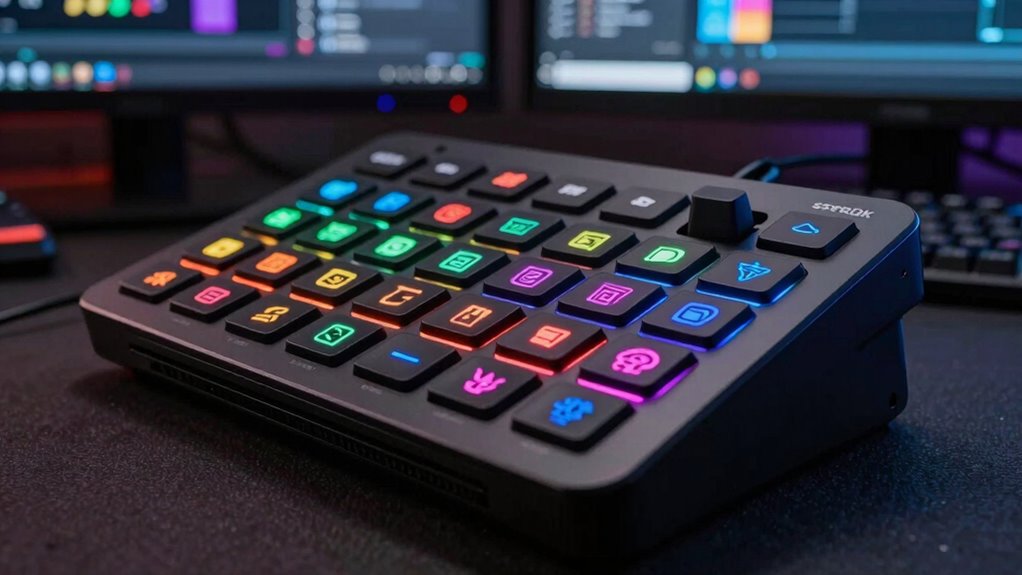
If you create live content, a Stream Deck can transform your workflow by providing instant access to your essential controls. But many creators make a common mistake that can turn good content into something that sounds average: neglecting the importance of audio mixing and viewer engagement. While it’s tempting to focus solely on visuals or chat interactions, overlooking audio quality and how you connect with your audience can diminish your content’s impact. A Stream Deck makes it easy to switch scenes or launch effects, but if you don’t optimize your audio or fail to actively engage viewers, your stream can feel disconnected or flat.
Neglecting audio quality and viewer engagement can make even great content feel flat and disconnected.
One mistake is not assigning dedicated controls for audio levels. Instead of manually adjusting audio during your live session, you should set up buttons on your Stream Deck to toggle mute/unmute, adjust volume, or switch between different audio sources. This allows you to keep your audio crisp and well-balanced without scrambling for controls, which keeps your focus on content delivery and viewer interaction. Poor audio mixing often causes viewers to tune out or leave, even if your visuals are engaging. So, streamline your audio controls with your Stream Deck to ensure your sound quality remains professional and consistent. Additionally, understanding the fundamentals of biodiversity and conservation can help you create more meaningful and impactful content that resonates with your audience’s values. Recognizing the importance of audio fidelity can further elevate your streaming quality and viewer experience. Moreover, exploring sound design techniques can help you craft a more immersive auditory experience that captivates your audience. Incorporating audio calibration practices can also improve consistency and clarity across different streaming setups, ensuring your sound remains pristine regardless of environment.
Another pitfall is underestimating the importance of using your Stream Deck to foster viewer engagement. If you only use it for scene changes or basic commands, you miss out on opportunities to create a more interactive experience. Use your Stream Deck to trigger polls, sound effects, or chat commands that encourage audience participation. The more interactive your stream, the more viewers feel involved, which boosts engagement and loyalty. Remember, viewers are more likely to stay and share if they feel like they’re part of a lively, engaging community.
Additionally, many streamers forget to prepare personalized hotkeys for quick responses or frequent actions. When you’re caught up in the flow of live content, quick reactions matter. Having controls for quick shoutouts, links, or specific sound bites ready at your fingertips keeps the energy high and your responses rapid. This not only enhances viewer engagement but also makes your stream sound more polished and professional.
Ultimately, the mistake that makes good content sound average is not leveraging your Stream Deck to its full potential—especially when it comes to audio mixing and viewer interaction. By assigning controls that keep your audio clear and engaging, you make your streams more compelling. When viewers hear quality sound and feel actively involved, your content naturally stands out. So, focus on optimizing these aspects, and your streams won’t just be good — they’ll be memorable.
Elgato Stream Deck audio control
As an affiliate, we earn on qualifying purchases.
As an affiliate, we earn on qualifying purchases.
Frequently Asked Questions
How Do I Customize Stream Deck Buttons for Different Streaming Platforms?
You can customize your Stream Deck buttons for different streaming platforms by using button customization features within the Stream Deck software. First, create specific profiles for each platform, then assign commands or shortcuts tailored to that platform’s needs. Utilize platform integration options to streamline actions, ensuring each button triggers the correct function. This way, you optimize your workflow and enhance your live content experience across multiple streaming platforms.
What Are the Best Stream Deck Models for Beginner Content Creators?
Think of a beginner’s Stream Deck as your trusty compass, guiding your creative journey. The Elgato Stream Deck Mini is ideal, offering excellent hardware compatibility and an ergonomic design that’s perfect for new creators. It’s compact yet powerful, making it easy to customize and navigate. This model helps you focus on content, not tech frustrations, turning your streams into smooth, engaging experiences from the start.
Can I Use Stream Deck With Non-Streaming Software?
Yes, you can use a Stream Deck with non-streaming software. It’s designed for hardware compatibility and software integration, so it works with various programs beyond streaming platforms. You just need to configure the buttons to control your preferred tools, whether it’s editing software, music apps, or other productivity programs. This flexibility makes the Stream Deck a versatile device, enhancing your workflow regardless of the software you use.
How Do I Troubleshoot Connectivity Issues With My Stream Deck?
To troubleshoot connectivity issues with your Stream Deck, first check hardware compatibility to guarantee your device and software are compatible and up-to-date. Then, verify your network stability—weak or unstable connections can disrupt communication. Restart your computer and reconnect the Stream Deck, and if issues persist, try using a different USB port or cable. Updating drivers and software can also resolve most connectivity problems.
Are There Specific Plugins to Enhance My Live Content Workflow?
Yes, you can enhance your live content workflow with specific plugins designed for Stream Decks. Look for plugin integration options that streamline your tasks, like automating scene changes or controlling audio levels. These plugins help reduce manual work, improving efficiency. By focusing on workflow automation, you guarantee smoother transitions and better production quality, making your live content more engaging and polished.
Stream Deck sound effects triggers
As an affiliate, we earn on qualifying purchases.
As an affiliate, we earn on qualifying purchases.
Conclusion
Remember when I first started using a Stream Deck, I felt like I had a secret weapon—everything flowed seamlessly, and my content shined. But I also saw many creators fall into the trap of overcomplicating their setup, turning their streams into chaos. The real mistake? Thinking more buttons equal better content. Keep it simple, master your workflow, and your audience will notice the difference—just like a well-orchestrated symphony, every element should work in harmony.
Stream Deck chat command buttons
As an affiliate, we earn on qualifying purchases.
As an affiliate, we earn on qualifying purchases.
Stream Deck scene switcher with audio
As an affiliate, we earn on qualifying purchases.
As an affiliate, we earn on qualifying purchases.
Halloween Picks
halloween
As an affiliate, we earn on qualifying purchases.