The best Razer gaming accessories depend on what your setup needs most: I rank the Razer Basilisk V3 as the best overall pick for its direct impact on everyday play, while the BlackShark V2 X is a straightforward headset choice and the Firefly V2 Pro suits buyers seeking a premium illuminated mat. The main tradeoffs are practical ones: wired simplicity versus extra connectivity, soft or hard surfaces versus illuminated features, and focused upgrades versus desk-wide RGB. A mouse or headset can change how you play, while stands, bungees, and cooling pads solve narrower setup problems. Read on for all 12 picks, how they differ, and which ones fit your priorities.

Get the latest gadgets delivered free with Prime
- Fast, free delivery on millions of items
- Prime Video, Amazon Music and more included
- Member-only deals all year
Complete the kit


Key Takeaways
- The Basilisk V3 ranks first because a gaming mouse affects daily control and comfort more directly than a decorative or specialized desk accessory.
- The Firefly V2 Pro is the premium mat pick, while the Firefly Hard V2 and Strider Chroma offer different surface approaches for buyers who do not need its illuminated design.
- The two Base Station stands serve different desk needs: the V3 Chroma adds a USB hub, while the V2 Chroma includes an audio DAC and USB ports.
- The Mouse Bungee V3 Chroma addresses cable drag, but it is most relevant to wired mouse users rather than people seeking a general-purpose upgrade.
- The Tartarus V2 and laptop cooling pad are specialist choices; their value depends on using programmable side controls or gaming on a laptop that benefits from added cooling.
| Razer Gaming Mouse Bungee V3 Chroma |  | Best for Wired Mouse Cable Control | Model: RC21-01520100-R3U1 | Weight: 240 g (8.5 oz) | Dimensions: 3.55 in L × 4.83 in W | VIEW LATEST PRICE | See Our Full Breakdown |
| Razer Laptop Cooling Pad with Adaptive Smart Fan Control |  | Best for Adaptive Laptop Cooling | Model: RC21-02300100-R3UC | Laptop compatibility: 14–18 inches | Fan: One 140 mm brushless fan | VIEW LATEST PRICE | See Our Full Breakdown |
| Razer BlackShark V2 X Wired Gaming Headset |  | Best for Lightweight Multi-Platform Audio | Model: BlackShark V2 X | Driver size: 50 mm | Connection: 3.5 mm audio jack | VIEW LATEST PRICE | See Our Full Breakdown |
| Razer Base Station V3 Chroma RGB Headset Stand with USB Hub |  | Best for Synapse-Integrated Headset Storage | Mounting type: Tabletop | Material: Plastic | Weight: 10.88 oz | VIEW LATEST PRICE | See Our Full Breakdown |
| Razer Strider Chroma Hybrid Gaming Mouse Mat |  | Best for an Extended RGB Hybrid Surface | Model number: RZ02-04490100-R3U1 | Surface: Hybrid soft/hard | Lighting: 19 Razer Chroma RGB zones | VIEW LATEST PRICE | See Our Full Breakdown |
| Razer Base Station V2 Chroma Headphone Stand with RGB Lighting, USB Ports, and Audio DAC |  | Best Headphone Stand with Built-In Audio | Model: Base Station V2 Chroma (RC21-01510100-R3U1) | Materials: Aluminum and rubber | Lighting: Chroma RGB, 16.8 million colors | VIEW LATEST PRICE | See Our Full Breakdown |
| Razer Basilisk V3 Wired Ergonomic Gaming Mouse |  | Best for Programmable Controls | Connectivity: USB wired | Design: Right-handed ergonomic shape with thumb rest | Maximum sensitivity: 26,000 DPI | VIEW LATEST PRICE | See Our Full Breakdown |
| Razer Firefly Hard V2 RGB Gaming Mousepad |  | Best Hard-Surface Mousepad | Dimensions: 15.2 × 12 × 0.14 in | Surface: Hard, micro-textured | Lighting: Razer Chroma RGB, 16.8 million colors | VIEW LATEST PRICE | See Our Full Breakdown |
| Razer Firefly V2 Pro RGB Gaming Mouse Mat |  | Best Premium RGB Mouse Mat | Model: Firefly V2 Pro (RZ02-04920100-R3U1) | Lighting: 15-zone Chroma RGB | Surface: Micro-textured, low friction | VIEW LATEST PRICE | See Our Full Breakdown |
| Razer Tartarus V2 Left-Handed Gaming Keypad with 32 Programmable Keys | 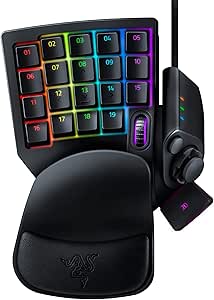 | Best for Custom Game Commands | Key count: 32 | Switch type: Mecha-Membrane | Hand orientation: Left | VIEW LATEST PRICE | See Our Full Breakdown |
| Razer Mouse Dock Pro with Wireless Charging Puck |  | Best for Compatible Wireless Mice | Brand: Razer | Color: Classic Black | Interface: USB 3.0 | VIEW LATEST PRICE | See Our Full Breakdown |
| Razer Goliathus Extended Chroma Gaming Mousepad |  | Best Extended RGB Cloth Pad | Brand: Razer | Model number: RZ02-02500300-R3U1 | Material: Soft cloth | VIEW LATEST PRICE | See Our Full Breakdown |
| Razer gaming accessorie | Lighting | Warranty |
|---|---|---|
| Razer Gaming Mouse Bungee V3 C | RGB Chroma, 16.8 million colors | — |
| Razer Laptop Cooling Pad with | Razer Chroma RGB | 2 years |
| Razer BlackShark V2 X Wired Ga | — | 2 years |
| Razer Base Station V3 Chroma R | 12-zone Chroma RGB | — |
| Razer Strider Chroma Hybrid Ga | 19 Razer Chroma RGB zones | 1-year manufacturer warranty |
| Razer Base Station V2 Chroma H | Chroma RGB, 16.8 million colors | — |
| Razer Basilisk V3 Wired Ergono | 11 Razer Chroma RGB zones | — |
| Razer Firefly Hard V2 RGB Gami | Razer Chroma RGB, 16.8 million colors | 1 year manufacturer |
| Razer Firefly V2 Pro RGB Gamin | 15-zone Chroma RGB | 1 year manufacturer |
| Razer Tartarus V2 Left-Handed | — | — |
| Razer Mouse Dock Pro with Wire | — | — |
| Razer Goliathus Extended Chrom | Razer Chroma RGB, 16.8 million colors | 1 year |
More Details on Our Top Picks
Razer Gaming Mouse Bungee V3 Chroma
The Mouse Bungee V3 Chroma is the practical pick for players who like a wired mouse but want its cable to move more like a wireless one. Its adjustable spring arm lifts rubber, braided, or paracord cables off the desk, reducing snags and drag during broad swipes. The 240 g base and non-slip feet help it stay put, while its compact footprint takes up less room than the extended Strider Chroma mat. That mat changes the glide and lighting of the whole mouse area; this bungee solves a narrower problem without requiring a surface upgrade. The tradeoff is just as specific: it offers no benefit with a wireless mouse, and its fixed base is meant to stay on a desktop. RGB underglow is a bonus, not a substitute for cable management.
Pros:- Adjustable spring arm helps keep compatible mouse cables clear of the desk
- 240 g weighted base and non-slip feet support stability during active play
- Compact footprint uses less desk area than an extended mouse mat
- RGB underglow supports customizable Chroma effects
Cons:- Provides no cable-management benefit with a wireless mouse
- Fixed base is suited to desktop use rather than portable setups
Best for: Wired-mouse players who make wide, fast movements and have desk space for a stationary cable guide
Not ideal for: Wireless-mouse owners or players who need a portable setup that moves between locations
- Model:RC21-01520100-R3U1
- Weight:240 g (8.5 oz)
- Dimensions:3.55 in L × 4.83 in W
- Cable support:Rubber, braided, and paracord cables
- Lighting:RGB Chroma, 16.8 million colors
- Material:Rubber
- Software and operating systems:Razer Synapse 3; Windows, macOS, Linux, and Chrome OS
Our verdict“Choose the Mouse Bungee V3 Chroma if a wired mouse cable keeps catching on your desk and you want a compact, stationary fix.”
Razer Laptop Cooling Pad with Adaptive Smart Fan Control
This cooling pad stands apart from Razer’s desk accessories by addressing laptop heat and connectivity rather than mouse control or headset storage. Its 140 mm fan can adjust speed automatically or follow preset and custom curves, giving laptop owners more control than a simple fixed-speed cooling stand. The airtight pressure chamber and magnetic frames are designed to direct airflow across supported 14–18-inch laptops, while three USB-A ports help reconnect peripherals that the pad may occupy. Compared with the Mouse Bungee V3 Chroma, this is a larger, more system-dependent purchase: custom curves and button remapping require Synapse, and the stated HyperBoost benefits apply to compatible Razer Blade laptops. Buyers with another laptop still get the fan and hub, but should not assume every feature will work the same way. It is best for a laptop desk setup, not a grab-and-go accessory.
Pros:- Automatic fan control responds to laptop temperature
- Pressure chamber and magnetic frames are designed to direct airflow across supported laptop sizes
- Three USB-A ports add peripheral connectivity
- Preset and custom fan curves offer more control than fixed-speed cooling
Cons:- Custom fan curves and button remapping depend on Razer Synapse
- HyperBoost benefits are specified for compatible Razer Blade laptops
- Its cooling-pad format is intended for a desk rather than portable use
Best for: Laptop gamers with a 14–18-inch machine who want temperature-responsive cooling and extra USB-A connections at a fixed desk
Not ideal for: Owners of smaller laptops, users who avoid Synapse, or buyers expecting HyperBoost benefits on a non-compatible Blade
- Model:RC21-02300100-R3UC
- Laptop compatibility:14–18 inches
- Fan:One 140 mm brushless fan
- Maximum fan speed:3000 RPM
- Fan control:Automatic, preset, and custom fan curves
- USB ports:Three USB Type-A
- Lighting:Razer Chroma RGB
- Warranty:2 years
Our verdict“Pick this cooling pad if your compatible-size laptop stays at a desk and you want adaptive airflow plus a built-in USB-A hub.”
Razer BlackShark V2 X Wired Gaming Headset
The BlackShark V2 X is the most direct audio upgrade in this group: a lightweight, wired headset for players who want one connection that works across several consoles and computers. At 240 g, it is a more wearable choice for long sessions than adding another desk accessory such as the Base Station V3 Chroma, which is designed for headset storage and Synapse automation rather than listening. The 3.5 mm connection keeps setup straightforward, and the cardioid microphone is designed to focus on voice pickup. Its 50 mm drivers and closed over-ear fit suit players seeking an immersive, isolated listening experience. The main compromise is software dependence: 7.1 surround sound is limited to 64-bit Windows 10, so it is not a universal feature across its listed platforms. Xbox One may also need a separate stereo adapter.
Pros:- Lightweight 240 g over-ear design
- 3.5 mm connection supports several listed computer and console platforms
- Breathable foam cushions and closed earcups help with comfort and sound isolation
- Cardioid microphone is designed to focus on voice pickup
Cons:- Software-enabled 7.1 surround sound is limited to 64-bit Windows 10
- Xbox One may require a separately purchased stereo adapter
Best for: Players who want a lightweight wired headset that can connect to a PC, Mac, PlayStation, Xbox, or Switch through 3.5 mm
Not ideal for: Buyers who require wireless audio, want surround sound on every platform, or need an Xbox One stereo adapter included
- Model:BlackShark V2 X
- Driver size:50 mm
- Connection:3.5 mm audio jack
- Microphone:Razer HyperClear cardioid
- Surround sound:Software-enabled 7.1 on 64-bit Windows 10
- Compatibility:PC, Mac, PS4, Xbox One, and Nintendo Switch
- Fit and weight:Over-ear; 240 g
- Warranty:2 years
Our verdict“Choose the BlackShark V2 X if you want a light, wired headset for multiple platforms and can accept platform-limited surround sound.”
Razer Base Station V3 Chroma RGB Headset Stand with USB Hub
The Base Station V3 Chroma earns its place for buyers who want headset storage to do more than clear desk space. Its automatic detection can trigger Synapse profiles when a headset is removed, while the dual USB 3.1 ports provide convenient connections for peripherals. That makes it more integrated than the BlackShark V2 X, which is a headset rather than a hub, but it also makes this stand a narrower choice: its audio and automation features require a Windows 11 PC with Synapse. The curved anti-slip ledge is designed to support larger headsets without putting a sharp bend in the headband, and the felt base helps protect the desk. The compromise is a plastic enclosure, which may feel less substantial than metal alternatives. Choose it for software-linked convenience, not as a universal audio accessory.
Pros:- Headset detection can trigger custom Synapse profiles
- Two USB 3.1 ports provide peripheral connections at the desk
- Curved anti-slip ledge is designed to support larger headsets and preserve headband shape
- 12-zone Chroma RGB supports lighting customization
Cons:- Audio and automation features require a Windows 11 PC with Synapse
- Plastic enclosure may feel less substantial than a metal stand
- Tabletop stand does not solve headset storage away from the desk
Best for: Windows 11 gamers already using Synapse who want headset storage, profile automation, and two USB ports in one desktop accessory
Not ideal for: Console-only players, users who do not run Synapse, or buyers seeking a premium metal stand
- Mounting type:Tabletop
- Material:Plastic
- Weight:10.88 oz
- Connectivity:Two USB 3.1 ports, up to 5 Gbps
- Lighting:12-zone Chroma RGB
- Audio:7.1 surround sound via Synapse
- Compatibility:Windows 11 PC with Synapse
Our verdict“Pick the Base Station V3 Chroma if you use Synapse on Windows 11 and want headset storage tied to desk connectivity and profile automation.”
Razer Strider Chroma Hybrid Gaming Mouse Mat
The Strider Chroma is the broadest mouse-surface choice in this batch: its extended format accommodates both keyboard and mouse, and its hybrid material aims to balance smooth movement with enough stopping power for controlled aim. That makes it a different proposition from the Mouse Bungee V3 Chroma, which manages a cable but does not change the desk surface beneath the mouse. The Strider also brings 19 Chroma lighting zones and integrated game effects, so it suits buyers building a coordinated RGB setup. Seamless edges and an anti-slip base support a steady playing area, while water resistance and warp resistance help with everyday wear. The tradeoff is space: a mat large enough for keyboard and mouse can overwhelm a compact desk. Full lighting customization also requires software, so it is less appealing if you want a simple, unlit pad.
Pros:- Hybrid surface combines smooth glide with stopping power
- Extended size can accommodate both keyboard and mouse
- Nineteen Chroma RGB zones offer broad lighting customization and game integration
- Seamless edges, water resistance, and an anti-slip base support everyday use
Cons:- Large format may not fit smaller desk setups
- Full RGB customization requires software
Best for: Desktop players with room for a keyboard-and-mouse mat who want a hybrid glide-and-control surface with extensive RGB
Not ideal for: Gamers with compact desks or anyone who prefers a small, software-free mouse pad
- Model number:RZ02-04490100-R3U1
- Surface:Hybrid soft/hard
- Lighting:19 Razer Chroma RGB zones
- Features:Warp-resistant, water-resistant, seamless edges, anti-slip base
- Game integration:Dynamic effects for over 150 integrated games
- Size format:Extended, designed to accommodate keyboard and mouse
- Warranty:1-year manufacturer warranty
Our verdict“Choose the Strider Chroma if you have room for an extended mat and want a hybrid mouse surface with integrated RGB.”
Razer Base Station V2 Chroma Headphone Stand with RGB Lighting, USB Ports, and Audio DAC
I’d choose the Base Station V2 Chroma when a headset needs a dedicated home and the desk could use extra connections. Its two USB 3.1 ports handle charging, while the 3.5 mm jack and built-in 7.1 surround sound DAC add audio functions that a basic stand does not provide. The rubber base and low center of gravity help it stay put, and the detachable base makes it easier to pack than a fixed tower.
Compared with the Base Station V3 Chroma, this model’s distinguishing appeal is the combination of USB ports and an audio DAC. The tradeoff is desk footprint: its 10.94-inch height and 4.72-inch base take up space, and the ports and lighting need a USB connection. Skip it if you only need a compact place to hang headphones.
Pros:- Rubber base and low center of gravity help keep the stand stable.
- Two USB 3.1 ports provide convenient charging connections.
- Built-in 7.1 surround sound DAC and 3.5 mm audio jack add functionality beyond storage.
- Detachable base makes the stand easier to transport.
Cons:- USB power is required for the lighting and ports.
- The tall, tower-style design occupies noticeable desk space.
Best for: PC gamers who want a stable headset stand, convenient USB charging, and a 3.5 mm audio connection with a built-in DAC.
Not ideal for: Minimalist desk setups or players who only need a simple headphone hook and do not want another USB-powered device.
- Model:Base Station V2 Chroma (RC21-01510100-R3U1)
- Materials:Aluminum and rubber
- Lighting:Chroma RGB, 16.8 million colors
- Ports:Two USB 3.1 charging ports; one 3.5 mm audio jack
- Audio:Built-in 7.1 surround sound DAC
- Dimensions:4.72 in base diameter; 10.94 in high
- Weight:1 lb (460 g)
- Compatibility:Headphones
Our verdict“Choose this if you want your headset stand to double as a USB charging and audio hub; skip it if desk space is tight.”
Razer Basilisk V3 Wired Ergonomic Gaming Mouse
The Basilisk V3 is the strongest fit here for right-handed players who want more than a standard two-button mouse. Its 11 programmable buttons can keep macros and secondary commands within reach, while the thumb rest supports a more settled grip. The dual-mode tilt scroll wheel switches between tactile scrolling and free-spin, making it useful for both controlled weapon selection and moving through long pages.
Compared with the Firefly Hard V2, which focuses on a consistent mouse surface and cable management, the Basilisk adds direct control customization but remains a wired peripheral. Its 26,000 DPI optical sensor offers broad sensitivity adjustment, though the high ceiling won’t matter to every player. The right-handed shape and cord are real limits: left-handed users and anyone prioritizing wireless freedom should look elsewhere.
Pros:- Ergonomic right-handed shape includes a thumb rest.
- Eleven programmable buttons support macros and secondary commands.
- Dual-mode tilt scroll wheel offers tactile and free-spin modes.
- 26,000 DPI optical sensor provides a wide sensitivity range.
Cons:- Wired USB connectivity limits movement and requires cable management.
- Right-handed shape is unsuitable for many left-handed users.
Best for: Right-handed PC gamers who want an ergonomic grip, assignable commands, and a scroll wheel suited to both precise and fast movement.
Not ideal for: Left-handed players or gamers who want a wireless mouse and freedom from cable routing.
- Connectivity:USB wired
- Design:Right-handed ergonomic shape with thumb rest
- Maximum sensitivity:26,000 DPI
- Buttons:11 programmable
- Scroll wheel:Dual-mode HyperScroll tilt wheel
- Lighting:11 Razer Chroma RGB zones
- Switches:Optical Mouse Switches Gen 2
- Compatibility:Laptops and PCs; Windows 10 and Windows 11
Our verdict“Pick the Basilisk V3 if you want extensive mouse controls and an ergonomic right-handed shape, but not if wireless use is a priority.”
Razer Firefly Hard V2 RGB Gaming Mousepad
I’d pick the Firefly Hard V2 for players who favor a firm, micro-textured surface and want mouse movement to feel consistent across the pad. Its surface is designed for precise tracking with all mouse sensors, while the non-slip rubber base helps keep the thin mat in place. A built-in cable manager also helps control wired-mouse drag without adding a separate bungee.
Compared with the Firefly V2 Pro, this version is the more straightforward hard-pad choice: it pairs its surface with Chroma lighting and cable management, rather than the Pro’s integrated USB port and 15 lighting zones. The tradeoff is comfort. At just 0.14 inches thick, it offers little cushioning, and the hard surface may feel less forgiving during long sessions than a cloth pad. RGB lighting also needs USB power.
Pros:- Micro-textured hard surface supports precise tracking across mouse sensors.
- Non-slip natural-foam rubber base helps prevent unwanted movement.
- Built-in cable manager helps reduce drag from a wired mouse.
- Chroma RGB lighting offers extensive customization and game integration.
Cons:- Hard surface provides less comfort than a cloth pad during long sessions.
- Thin profile offers minimal wrist cushioning.
- USB connection is needed to power the RGB lighting.
Best for: Players who prefer a firm, low-profile surface for precise mouse tracking and want cable management built into the pad.
Not ideal for: Gamers who prefer a soft, cushioned surface for long sessions or want a mouse mat with a built-in USB port.
- Dimensions:15.2 × 12 × 0.14 in
- Surface:Hard, micro-textured
- Lighting:Razer Chroma RGB, 16.8 million colors
- Base:Natural-foam rubber
- Features:Built-in cable manager
- Shape:Rectangular
- Color:Black
- Warranty:1 year manufacturer
Our verdict“Choose the Firefly Hard V2 for a firm tracking surface and built-in cable management; choose a softer pad if comfort takes precedence.”
Razer Firefly V2 Pro RGB Gaming Mouse Mat
The Firefly V2 Pro suits a setup where lighting is a defining feature, not just an accent. Its 15 customizable Chroma RGB zones create edge-to-edge illumination, while the micro-textured, low-friction surface aims to balance quick movement with control. The integrated USB 2.0 port is a practical addition for a wireless mouse dongle, and the detachable USB-C cable makes the mat easier to disconnect or reposition.
Compared with the Firefly Hard V2, the Pro emphasizes broader lighting and adds that USB port; the Hard V2 instead includes a built-in cable manager for a wired mouse. Both use a hard, micro-textured surface, so the Pro is not the better pick for someone seeking a cushioned feel. Its frosted finish may also need more frequent cleaning to keep the lighting clear, and the RGB still needs USB power.
Pros:- Fifteen customizable lighting zones create broad Chroma illumination.
- Integrated USB 2.0 port offers a convenient connection for a wireless mouse dongle.
- Micro-textured, low-friction surface balances speed and control.
- Detachable USB Type-C cable makes disconnecting and repositioning easier.
Cons:- USB power is required for the lighting.
- Frosted surface may need frequent cleaning to keep illumination clear.
- Hard surface is less cushioned than a cloth mousepad.
Best for: RGB-focused PC gamers who use a wireless mouse dongle and want it connected directly to the mat.
Not ideal for: Players who prefer a cushioned cloth surface, want a low-maintenance finish, or do not need extensive lighting.
- Model:Firefly V2 Pro (RZ02-04920100-R3U1)
- Lighting:15-zone Chroma RGB
- Surface:Micro-textured, low friction
- Connectivity:Integrated USB 2.0 port; detachable USB Type-C cable
- Base:Anti-slip
- Color:Black
- Warranty:1 year manufacturer
Our verdict“Choose the Firefly V2 Pro for extensive RGB and a handy dongle port, but favor the Firefly Hard V2 if built-in cable management matters more.”
Razer Tartarus V2 Left-Handed Gaming Keypad with 32 Programmable Keys
The Tartarus V2 is made for players who want a bank of game-specific commands under one hand rather than another full keyboard. Its 32 programmable keys, 8-way thumbpad, and 3-way scroll wheel provide room for macros and movement inputs, while the adjustable two-position palm rest lets users alter the typing angle. Individually backlit keys make customized layouts easier to distinguish.
Compared with the Basilisk V3, the Tartarus shifts more commands onto a dedicated keypad instead of adding buttons to a mouse. That can suit players with complex control schemes, but the single-handed layout takes setup and may be excessive for simpler games. It is also a wired USB-A device designed for the left hand, so placement is cable-limited and it won’t suit players seeking a compact, all-purpose keyboard replacement.
Pros:- Thirty-two programmable keys allow extensive remapping and macro setup.
- 8-way thumbpad and 3-way scroll wheel add dedicated control options.
- Two-position adjustable palm rest allows a choice of typing angle.
- Individually backlit keys support customizable RGB layouts.
Cons:- USB-A wired connection restricts placement to cable reach.
- Left-hand single-keypad layout may not suit every player or game.
- Requires time to configure and may be unnecessary for simpler control needs.
Best for: PC gamers who use macros or complex control schemes and want a dedicated left-hand keypad beside their main keyboard.
Not ideal for: Players who prefer a standard full keyboard, need a wireless keypad, or want a device designed for the right hand.
- Key count:32
- Switch type:Mecha-Membrane
- Hand orientation:Left
- Thumbpad:8-way directional
- Scroll wheel:3-way
- Backlighting:RGB, 16.8 million color options
- Connectivity:USB-A wired
- Dimensions:6.02 × 2.36 × 0.8 in
- Palm rest:Adjustable, two positions
Our verdict“Choose the Tartarus V2 if your games benefit from many custom commands under your left hand; skip it if you want a familiar full-keyboard layout.”
Razer Mouse Dock Pro with Wireless Charging Puck
The Mouse Dock Pro earns its place for owners of select Razer wireless mice who want charging and a high-polling-rate receiver in one desktop accessory. Its magnetic charging puck makes docking straightforward, while the integrated transceiver supports up to 8K Hz polling with compatible setups. That gives it a more performance-focused role than the Razer Gaming Mouse Bungee V3 Chroma, which manages a wired mouse cable rather than charging a mouse or providing a wireless transceiver.
The tradeoff is narrow compatibility: the listed supported models are the Basilisk V3 Pro, Cobra Pro, and Naga V2 Pro. It also needs a USB 3.0 port for full functionality, so it is a poor fit if your mouse is not on that list or your ports are already occupied. Its lighting and battery indicators add useful at-a-glance feedback, but they do not make it a universal charging dock.
Pros:- Magnetic puck makes compatible mice easy to dock for charging.
- Integrated transceiver supports up to 8K Hz polling with compatible setups.
- Chroma RGB lighting includes battery status indicators.
- Anti-slip base stays put without adhesive residue.
Cons:- Compatibility is limited to select Razer mouse models.
- Requires a USB 3.0 port for full functionality.
Best for: Owners of the Razer Basilisk V3 Pro, Cobra Pro, or Naga V2 Pro who want a charging dock and integrated high-polling-rate transceiver.
Not ideal for: Gamers with other mouse models, wired mice, or no available USB 3.0 port, since compatibility and full functionality are limited.
- Brand:Razer
- Color:Classic Black
- Interface:USB 3.0
- Wattage:4.5 watts
- Dimensions:3.29 × 2.2 × 1.71 inches
- Weight:4.32 ounces
- Compatible devices:Basilisk V3 Pro, Cobra Pro, Naga V2 Pro
- Polling rate:Up to 8K Hz via integrated transceiver
Our verdict“Choose this dock if you own one of its supported Razer mice and want charging and an 8K Hz transceiver together; skip it if you need broader compatibility.”
Razer Goliathus Extended Chroma Gaming Mousepad
The Goliathus Extended Chroma suits players who want a broad cloth surface for sweeping mouse movements and coordinated desk lighting. Its micro-textured cloth balances speed with tactile feedback, while the extended format leaves room for low-sensitivity play. Compared with the Razer Firefly Hard V2 RGB Gaming Mousepad, this soft pad offers a cloth feel and a larger movement area rather than a rigid hard surface; the right choice depends on whether you favor a cushioned, expansive play zone or a firmer pad.
The Chroma RGB edge lighting can sync with games and other devices, but full customization requires software. Cloth also asks for more care than a hard surface: the material may wear or stain with heavy use. Its non-slip rubber base helps keep the pad steady, though buyers with limited desk space should measure before choosing an extended mat.
Pros:- Extended surface accommodates broad, low-sensitivity mouse movements.
- Micro-textured cloth offers tactile feedback for controlled tracking.
- Chroma RGB edge lighting supports customization and synchronization.
- Natural-foam rubber base helps prevent the pad from shifting.
Cons:- Full lighting customization and synchronization require software installation.
- Cloth can wear down or stain with heavy use.
Best for: Low-sensitivity mouse players who have desk space for an extended cloth surface and want RGB lighting around the edge.
Not ideal for: Gamers with compact desks, those who prefer a hard mouse surface, or anyone who wants to avoid software setup and cloth upkeep.
- Brand:Razer
- Model number:RZ02-02500300-R3U1
- Material:Soft cloth
- Base material:Natural-foam rubber
- Lighting:Razer Chroma RGB, 16.8 million colors
- Shape:Rectangular
- Color:Black
- Warranty:1 year
Our verdict“Pick the Goliathus if you want an expansive, soft cloth play surface with RGB edges; choose a hard pad or smaller mat if space and easy upkeep matter more.”
How We Picked
I compared these 12 Razer accessories by the problem each solves, how directly it affects gaming or setup usability, and how broadly it can serve different buyers. Performance-related picks such as the Basilisk V3 and BlackShark V2 X rank ahead of accessories whose main benefits are organization or lighting, while build and practical features help distinguish products within each category. I also weighed surface type, connection needs, desk footprint, and whether an accessory depends on other gear or a particular play style.
The ranking is not a claim that every buyer needs the same upgrade. I placed versatile, directly useful options higher, then separated specialized and presentation-focused accessories by the buyer who can make the most of them. That is why the Firefly V2 Pro is a premium surface pick rather than a default recommendation, and why a bungee, keypad, or cooling pad ranks best for a specific need rather than for every setup.
Factors to Consider When Choosing Best Razer Gaming Accessories
Before choosing, I would start with the limitation you notice most during play or at your desk. Matching the accessory to that problem matters more than adding another Razer-branded device or pursuing a coordinated lighting scheme.
Start With the Upgrade That Changes Play
Choose an accessory that affects a repeated part of your gaming routine before buying one that mainly changes how the desk looks. A mouse, headset, or surface can influence control, comfort, or audio every session, while a stand primarily organizes equipment. A useful test is to name the specific frustration the purchase should fix, such as cable drag or limited control inputs. If you cannot identify that friction, a decorative add-on may bring less practical value than expected. This approach also helps separate a core upgrade like the Basilisk V3 from a more specialized choice like the Tartarus V2. Prioritize function first, then decide whether lighting or matching aesthetics matter to you.
Match the Mouse Surface to Your Playing Style
Mouse mats differ in more than size and lighting: their surface feel affects how the mouse moves and how much desk space the setup uses. Hard mats, soft cloth-style mats, and hybrid surfaces can feel quite different, so do not assume that an RGB feature makes one surface better for every player. Check the usable area against your sensitivity, mouse movement, keyboard placement, and desk dimensions. Extended mats can unify the keyboard and mouse area, but they take up more space and can be less convenient to reposition. A dedicated mouse mat can suit a compact layout, while a larger option makes sense when you want a shared surface. Pick based on control preference and fit before treating illumination as a deciding factor.
Check Connections and Desk Compatibility
USB ports and audio features can make an accessory more useful, but only when they match your existing devices and available connections. Before choosing a headset stand with a hub or DAC, check what you already plug into the computer and whether the stand will sit within reach of those devices. A wireless mouse dock has a different purpose from a cable bungee, so buying either without checking your mouse setup can leave its main feature unused. Also measure the space around your monitor, keyboard, and headset; small desk accessories still need a practical home. Consider cable routing and port access, not just the number of added features. A simpler accessory can be the better fit when your computer already handles the same jobs.
Pay for Specialist Features Only When You Will Use Them
Some accessories bring clear benefits to a narrower group of players. Programmable keypad controls matter most when you have repeated commands or a game that benefits from extra inputs, while a laptop cooling pad only makes sense for a laptop-based setup where airflow and placement are relevant. A mouse bungee is aimed at wired mouse cable management, not wireless users. Before buying a specialist device, think about how often you will use its main function and whether it fits your games and desk habits. Extra controls can take time to configure, and added hardware can add clutter if the need is occasional. A focused accessory is a smart upgrade when it addresses a recurring limitation, but a poor substitute for a more broadly useful one.
Choose Lighting as a Secondary Feature
Razer’s illuminated accessories can help create a coordinated desk, but RGB should not stand in for a good fit or useful function. Think about whether the lighting will be visible from where you sit and whether you want one accent or several devices sharing the same visual style. More lighting can also mean more cables and software settings to manage. If your priority is a clean workspace, a stand or mat with practical features may be more useful than adding another illuminated surface. If appearance is a major part of the setup, compare how much desk area each lit accessory occupies before pairing several together. Treat lighting as a preference that can narrow the shortlist, not as proof that one device will perform better.
Leave Room for Maintenance and Long-Term Fit
Accessories live in high-contact areas, so consider how easy they will be to keep clean and reposition. Large surfaces may need more space for cleaning and can be awkward to move around a crowded desk, while a stand or dock needs a stable spot that keeps cables accessible. Check whether the accessory could interfere with your keyboard, mouse movement, or laptop placement before committing to a full layout change. A setup that looks coordinated in a product image may feel cramped once all your devices are in place. Think about what you might add later, especially if you are choosing a large mat or several desk add-ons. A little planning can prevent a useful accessory from becoming an obstacle.
Frequently Asked Questions
Which Razer accessory should I buy first if I am building a gaming setup?
I would start with the device that addresses your most frequent limitation, rather than adding several desk accessories at once. If you need a primary control upgrade, the Basilisk V3 is the roundup’s strongest all-around starting point; if audio is the gap, look at the BlackShark V2 X instead. Check that your desk and computer can support the accessory without creating cable or space problems. A stand or lighting-focused mat can come later if organization or appearance becomes a clear priority. This staged approach makes it easier to tell which upgrade actually helps your setup.
Should I choose a Razer hard mouse mat or a cloth-style one?
Choose by surface feel, movement habits, and available desk space, not by lighting alone. The Firefly Hard V2 gives buyers a hard-surface option, while the Strider Chroma and Goliathus Extended Chroma represent different alternatives for people seeking another surface style or a broader play area. Your mouse sensitivity and how far you move the mouse can affect which size and feel are comfortable. If possible, compare the material and dimensions against a surface you already like. A mat that does not suit your movement can frustrate you even if its lighting fits the rest of your setup.
Do I need a headset stand with a USB hub or audio DAC?
Only if those features solve a connection or organization problem you have. The Base Station V3 Chroma focuses on a USB hub, while the Base Station V2 Chroma adds an audio DAC alongside USB ports, so the distinction is what you want nearby on the desk. Check your computer’s available ports and the connections your headset actually uses before deciding. If your current setup already offers convenient access and audio handling, a stand’s extra electronics may add little. For a headset that otherwise gets left on the desk, a simpler storage solution may be enough.
Is the Razer Mouse Bungee V3 Chroma useful if I use a wireless mouse?
The bungee is aimed at managing a wired mouse cable, so a wireless mouse removes the main problem it is meant to address. It may still appeal if you have another wired mouse in regular use, but its specialized function should guide the decision. For a compatible wireless charging setup, the Mouse Dock Pro has a different role and should be judged by its fit with your mouse. Do not treat a bungee and a charging dock as interchangeable desk accessories. Check your mouse model and how you charge or connect it before choosing either one.
Is the Tartarus V2 a good choice for someone new to gaming accessories?
It can be a good fit for a beginner who already knows they want programmable side controls, but it is not the most broadly useful first purchase. Its value depends on configuring the keys and building habits around them, so a player who mainly needs a mouse or headset may get more immediate use from those basics. Think about whether your games involve repeated commands that would benefit from dedicated inputs. If you are unsure, start with a core device and revisit a keypad after you can name the controls you want to move. The Tartarus V2 makes the most sense as a targeted addition, not an automatic upgrade for every new setup.
Conclusion
For most buyers, I recommend the Razer Basilisk V3 as the best overall because it upgrades a core part of gaming rather than focusing on desk presentation. The BlackShark V2 X is my best-value direction for shoppers who need a straightforward wired headset, while the Firefly V2 Pro is the best premium choice for a buyer who specifically wants an illuminated mouse mat. Beginners should start with the accessory that fills an obvious gap—typically a mouse or headset—before adding stands and lighting. For specific needs, choose the Tartarus V2 for programmable inputs, the Mouse Bungee V3 Chroma for wired cable management, or the laptop cooling pad for a laptop-based gaming setup. Match the pick to your actual constraint, and the rest of the lineup becomes much easier to sort.