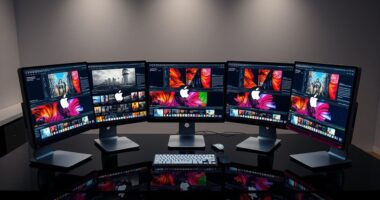
USB-C docking stations range from pocketable hubs for travel to full desk docks built for multiple displays and peripherals. My best overall pick is the Anker Prime 14-in-1 Docking Station for its broad connectivity, while the Anker 675 stands out for combining a dock with a monitor stand and the Dell WD19S for its laptop-focused power delivery. The main tradeoffs are portability versus a permanent desk setup, the number of displays supported, and whether your laptop can use the dock’s charging and video features. A longer port list does not guarantee compatibility with every computer or monitor. Read on for the full breakdown and help matching a dock to your setup.

Get the latest gadgets delivered free with Prime
- Fast, free delivery on millions of items
- Prime Video, Amazon Music and more included
- Member-only deals all year
Complete the kit



Key Takeaways
- The roundup’s clearest split is between desk docks and travel hubs: the Anker Prime 14-in-1, Dell WD19S, and Dell Pro WD25 target fuller workstation setups, while the Anker 332 and Anker 547 favor fewer, more portable connections.
- More ports do not automatically mean more display flexibility: the Acer 13-in-1 and LIONWEI 13-in-1 advertise several display outputs, but buyers still need to check laptop graphics support and the resolution and refresh rate they require.
- Charging needs can change the shortlist: the Dell WD19S lists 130W Power Delivery, making it a stronger match for compatible power-hungry laptops than a compact hub that relies on a lower-power USB-C pass-through setup.
- Some picks solve a desk problem beyond connectivity: the Anker 675 adds monitor-stand functionality, while the Anker Nano 13-in-1 separates a larger dock from a detachable 6-in-1 hub.
- The premium tier is about headroom, not a universal need: the Anker Prime Thunderbolt 5 dock is the specialist choice for compatible high-bandwidth setups; many everyday users may get a better fit from a simpler USB-C dock.
| Anker PowerExpand 8-in-1 USB-C Hub with Dual HDMI |  | Best for Ethernet and Card Readers | Ports: 8: USB-C PD-IN, 2 USB-A, 2 HDMI, Ethernet, SD, and microSD | Display support: One display at 4K/60Hz or two at 4K/30Hz | Pass-through charging: Up to 85W | VIEW LATEST PRICE | See Our Full Breakdown |
| LIONWEI 13-in-1 USB-C Docking Station with Dual HDMI and DisplayPort |  | Best for Windows Multi-Monitor Desks | Total ports: 13 | Video outputs: 2 HDMI and 1 DisplayPort | Maximum video resolution: Up to 4K at 60Hz with a compatible DP 1.4 source | VIEW LATEST PRICE | See Our Full Breakdown |
| UANTIN 10-in-1 USB-C Docking Station with Dual HDMI |  | Best for Portable Windows Dual Displays | Total ports: 10 | HDMI: 2 ports, up to 4K at 30Hz | USB-C data: 2 ports, up to 5Gbps; data only | VIEW LATEST PRICE | See Our Full Breakdown |
| Anker 547 USB-C Hub for MacBook (7-in-2, Thunderbolt 4 Compatible) |  | Best Compact MacBook Hub | Ports: Multifunction USB-C, USB-C data, 2 USB-A, HDMI, SD, and microSD | Maximum charging power: 100W | Maximum data transfer: 40Gbps | VIEW LATEST PRICE | See Our Full Breakdown |
| Acer 9-in-1 USB-C Docking Station with Dual HDMI |  | Best for 4K/60Hz Dual HDMI | Ports: 2 HDMI, 3 USB-A, 1 USB-C, SD, and microSD | HDMI resolution: Up to 4K at 60Hz | USB data: USB-A and USB-C ports up to 5Gbps | VIEW LATEST PRICE | See Our Full Breakdown |
| Anker Prime 14-in-1 Docking Station with Dual HDMI Displays |  | Best for High-Port-Count Windows Setups | Ports: 14 | USB data ports: 10 | Total output: Up to 160W | VIEW LATEST PRICE | See Our Full Breakdown |
| Anker Nano 8-in-1 USB-C Docking Station with Dual HDMI |  | Best Compact Dock for Windows Displays | Ports: 8 | Video output: 2 HDMI ports; up to dual 4K at 60Hz with compatible DP 1.4 host supporting DSC 3:1 | Laptop pass-through charging: Up to 85W | VIEW LATEST PRICE | See Our Full Breakdown |
| Anker Prime 14-in-1 Thunderbolt 5 Docking Station |  | Best Premium Thunderbolt 5 Dock | Ports: 14 | Thunderbolt ports: 1 upstream and 2 downstream | Maximum display resolution: Up to 8K at 60Hz | VIEW LATEST PRICE | See Our Full Breakdown |
| Anker 332 5-in-1 USB-C Hub with 4K HDMI | 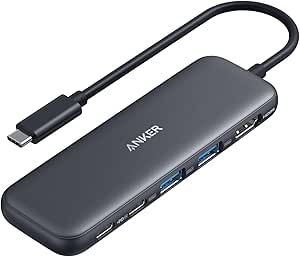 | Best Simple Travel Hub | Ports: 5: HDMI, USB-C data, 2 USB-A data, and USB-C PD-IN | HDMI resolution: Up to 4K at 30Hz | Data transfer rate: Up to 5Gbps | VIEW LATEST PRICE | See Our Full Breakdown |
| Anker 675 12-in-1 USB-C Docking Station and Monitor Stand |  | Best Dock and Monitor Stand Combo | Total ports: 12 | USB-A ports: 3, up to 10Gbps | USB-C ports: 3 total, including a 100W max upstream port and 2 Power Delivery ports sharing 45W | VIEW LATEST PRICE | See Our Full Breakdown |
| Anker 10-in-1 USB-C Hub with Smart Display and Dual Monitor Support |  | Best for High-Refresh Displays | Ports: 10-in-1; HDMI 2.1, DisplayPort 1.4, USB-C, USB-A, Gigabit Ethernet, SD, and microSD | Video output: Single 4K at up to 144Hz or 2K at up to 240Hz; dual 2K at up to 240Hz with compatible DP 2.1 host | Pass-through charging: Up to 80W; requires a 65W-or-higher charger, not included | VIEW LATEST PRICE | See Our Full Breakdown |
| Dell WD19S 180W Docking Station with 130W Power Delivery |  | Best for Dell Laptop Charging | Model: Dell WD19S | Connection: USB Type-C | Power delivery: Up to 130W | VIEW LATEST PRICE | See Our Full Breakdown |
| Anker Nano 13-in-1 Laptop Docking Station with Detachable 6-in-1 USB-C Hub |  | Best for Desk-to-Travel Flexibility | Ports: 13 total; 5 USB ports, 2 HDMI, 1 DisplayPort, Ethernet, 3.5mm audio, SD, and TF | Display support: Single 4K at 60Hz, dual 2K at 60Hz, or triple 1080p at 60Hz | Laptop charging: Up to 100W Power Delivery | VIEW LATEST PRICE | See Our Full Breakdown |
| Dell Pro WD25 USB-C Docking Station |  | Best for Multi-Display Workstations | Connection: USB-C | Power delivery: Up to 100W | Ports: 10 total, including 6 USB ports, DisplayPort, HDMI, and Ethernet | VIEW LATEST PRICE | See Our Full Breakdown |
| Acer 13-in-1 USB-C Docking Station with Triple Display Support |  | Best for Windows Triple-Display Desks | Ports: 2 HDMI, 1 DisplayPort 1.4, 4 USB-C, 3 USB-A, Gigabit Ethernet, 3.5mm AUX, SD, and microSD | Display support: Up to three independent displays on compatible Windows laptops | Maximum triple-display resolution: Up to 4K at 30Hz with compatible DSC host | VIEW LATEST PRICE | See Our Full Breakdown |
| USB-C docking station | Ports | Compatibility | Dimensions and weight |
|---|---|---|---|
| Anker PowerExpand 8-in-1 USB-C | 8: USB-C PD-IN, 2 USB-A, 2 HDMI, Ethernet, SD, and microSD | USB-C, USB4, and Thunderbolt; Windows 10/11 and ChromeOS; requires DP Alt Mode and Power Delivery | 4.65 × 2.01 × 0.69 in; 3.2 oz |
| LIONWEI 13-in-1 USB-C Docking | — | — | — |
| UANTIN 10-in-1 USB-C Docking S | — | — | — |
| Anker 547 USB-C Hub for MacBoo | Multifunction USB-C, USB-C data, 2 USB-A, HDMI, SD, and microSD | MacBook Air/Pro (M1–M5) and Windows 11 | 4.72 × 1.14 × 0.39 in; 1.92 oz |
| Acer 9-in-1 USB-C Docking Stat | 2 HDMI, 3 USB-A, 1 USB-C, SD, and microSD | USB-C devices with DisplayPort Alt Mode; macOS 10.12 Sierra or later and Windows 10 or later | — |
| Anker Prime 14-in-1 Docking St | 14 | USB-C, USB4, and Thunderbolt; Windows 10/11 and ChromeOS; requires DP Alt Mode and Power Delivery | — |
| Anker Nano 8-in-1 USB-C Dockin | 8 | Windows 10/11 and ChromeOS; full-function USB-C, USB4, and Thunderbolt; requires DP Alt Mode and Power Delivery | 7.87 × 4.13 × 0.79 in; 3.84 oz |
| Anker Prime 14-in-1 Thunderbol | 14 | MacBook with M1/M2/M3 Pro or Max, MacBook with M4 Standard/Pro/Max, and Thunderbolt 4/5 Windows laptops | 4.56 × 4.56 × 2.95 in; 2.4 lb |
| Anker 332 5-in-1 USB-C Hub wit | 5: HDMI, USB-C data, 2 USB-A data, and USB-C PD-IN | USB-C, USB4, and Thunderbolt; macOS 12 and newer, Windows 10/11, and ChromeOS | 4.78 × 1.59 × 0.45 in; 1.44 oz |
| Anker 675 12-in-1 USB-C Dockin | — | — | 21.26 × 8.66 × 3.54 in; 3.7 lb |
| Anker 10-in-1 USB-C Hub with S | 10-in-1; HDMI 2.1, DisplayPort 1.4, USB-C, USB-A, Gigabit Ethernet, SD, and microSD | Windows 10/11 and macOS; mirrored displays on Mac; not compatible with Linux | 5.12 × 2.19 × 1.97 in; 330 g |
| Dell WD19S 180W Docking Statio | — | — | 8.07 × 8.1 × 1.1 in; 1.3 lb |
| Anker Nano 13-in-1 Laptop Dock | 13 total; 5 USB ports, 2 HDMI, 1 DisplayPort, Ethernet, 3.5mm audio, SD, and TF | USB-C and Thunderbolt 3/4/5 laptops; Windows 10 and macOS 13 Ventura or later | — |
| Dell Pro WD25 USB-C Docking St | 10 total, including 6 USB ports, DisplayPort, HDMI, and Ethernet | — | 8.07 × 3.54 × 1.39 in; 1.2 lb |
| Acer 13-in-1 USB-C Docking Sta | 2 HDMI, 1 DisplayPort 1.4, 4 USB-C, 3 USB-A, Gigabit Ethernet, 3.5mm AUX, SD, and microSD | — | — |
More Details on Our Top Picks
Anker PowerExpand 8-in-1 USB-C Hub with Dual HDMI
The Anker PowerExpand 8-in-1 is a good fit when a laptop needs more than monitor connections: it combines Gigabit Ethernet, SD and microSD readers, USB-A, and dual HDMI in a compact hub. One screen can run at 4K/60Hz, or two at 4K/30Hz, which makes it more useful for a basic two-screen desk than a single-output hub. Compared with the UANTIN 10-in-1, this model adds Ethernet but offers fewer ports overall and the same key macOS limitation: both external displays mirror rather than extend. Its 85W pass-through can keep a laptop powered, but only with a separate 100W charger and USB-C cable. I would skip it for Linux systems or for anyone who needs independent extended displays on a Mac.
Pros:- Combines Gigabit Ethernet, dual HDMI, USB-A, and SD/microSD readers in one hub.
- Supports one 4K display at 60Hz or two at 4K at 30Hz.
- Provides up to 85W pass-through charging.
- Compact 3.2-ounce design is easy to carry between workspaces.
Cons:- macOS mirrors the same content on both external displays.
- Not compatible with Linux.
- Requires a separate 100W PD charger and USB-C cable for pass-through charging.
Best for: Laptop users who regularly move between wired Ethernet, memory cards, and one or two external displays, and already have a 100W USB-C charger.
Not ideal for: Linux users, Mac owners who need two independent external screens, or buyers who want a complete charging setup included.
- Ports:8: USB-C PD-IN, 2 USB-A, 2 HDMI, Ethernet, SD, and microSD
- Display support:One display at 4K/60Hz or two at 4K/30Hz
- Pass-through charging:Up to 85W
- Ethernet:1Gbps
- Compatibility:USB-C, USB4, and Thunderbolt; Windows 10/11 and ChromeOS; requires DP Alt Mode and Power Delivery
- Linux support:Not compatible
- Dimensions and weight:4.65 × 2.01 × 0.69 in; 3.2 oz
- Power accessories:100W PD wall charger and USB-C-to-C cable required; not included
Our verdict“Choose this hub if Ethernet and card-reader access matter as much as dual HDMI, but skip it if you need Linux support or independent Mac displays.”
LIONWEI 13-in-1 USB-C Docking Station with Dual HDMI and DisplayPort
For a Windows laptop that needs several display choices and a broad set of desk connections, the LIONWEI 13-in-1 has the most flexible video layout in this group: two HDMI outputs plus DisplayPort. With a compatible DP 1.4 source, it supports up to 4K at 60Hz, while its mix of USB ports, Gigabit Ethernet, and an audio/mic jack can replace several separate adapters. Unlike the Anker PowerExpand 8-in-1, it includes DisplayPort and more USB connections, though it lacks the Anker’s listed SD and microSD readers. The main dividing line is operating system: Windows supports MST and SST modes, but macOS can extend to only one external monitor. Its 100W input also leaves up to 87W for the laptop, so I would not choose it for a setup that needs the full input wattage at the computer.
Pros:- Offers two HDMI outputs and DisplayPort for flexible monitor connections.
- Supports up to 4K/60Hz with a compatible DP 1.4 source.
- Combines USB-C and USB-A ports, Gigabit Ethernet, and an audio/mic jack.
- Windows MST and SST support accommodates different multi-monitor arrangements.
Cons:- macOS extend mode supports only one external monitor.
- Up to 13W of the 100W input is used by the dock, leaving up to 87W for the laptop.
- The listed ports do not include SD or microSD card readers.
Best for: Windows laptop users building a multi-monitor desk who want HDMI and DisplayPort options, wired networking, and several USB connections.
Not ideal for: Mac users seeking more than one extended external monitor, or laptop owners who need more than 87W of charging output.
- Total ports:13
- Video outputs:2 HDMI and 1 DisplayPort
- Maximum video resolution:Up to 4K at 60Hz with a compatible DP 1.4 source
- USB ports:2 USB-C, 1 USB 3.1, 3 USB 3.0, and 2 USB 2.0
- Power delivery:100W input; up to 87W available for laptop charging
- Data transfer:Up to 10Gbps
- Network and audio:Gigabit Ethernet and 3.5 mm audio/mic jack
- Operating system display modes:Windows supports MST and SST; macOS can extend to one external monitor
Our verdict“Pick the LIONWEI for a Windows multi-monitor workstation with varied video outputs, but look elsewhere if you need multiple extended displays from a Mac.”
UANTIN 10-in-1 USB-C Docking Station with Dual HDMI
The UANTIN 10-in-1 is aimed at people who want a portable, no-driver hub for a Windows laptop and two extended screens. Its two HDMI ports support up to 4K/30Hz, and the aluminum body and braided 30 cm cable suit a setup that gets packed away rather than left permanently on a desk. Compared with the Acer 9-in-1, UANTIN specifies dual extended displays on compatible Windows systems and includes two USB-C data ports; Acer instead offers 4K/60Hz HDMI support and up to 90W to the laptop. UANTIN’s own charging output is up to 85W, and its USB-C data ports do not carry video or power. macOS mirrors the two displays, so this is a clearer fit for Windows users than Mac owners who need separate screen content.
Pros:- Supports dual extended displays on compatible Windows laptops.
- Combines two HDMI outputs, USB ports, and SD/microSD readers.
- Aluminum body and braided cable are suited to everyday portability.
- Requires no driver installation.
Cons:- HDMI output is limited to 4K/30Hz.
- macOS mirrors content across the two external displays.
- USB-C data ports support data only, not charging or video.
Best for: Windows laptop users who travel with a compact hub and need dual extended displays, card readers, and pass-through charging.
Not ideal for: Mac users who want separate content on two external screens, or anyone who prioritizes 4K/60Hz HDMI or USB-C ports that also handle charging and video.
- Total ports:10
- HDMI:2 ports, up to 4K at 30Hz
- USB-C data:2 ports, up to 5Gbps; data only
- USB-A:1 USB 3.0 port up to 5Gbps and 2 USB 2.0 ports
- Power delivery:Up to 100W input; up to 85W delivered to laptop
- Card readers:SD and microSD
- Display behavior:Windows: dual extended displays; macOS: mirrored displays
- Build and cable:Aluminum alloy body; nylon braided 30 cm (0.98 ft) cable
Our verdict“Choose UANTIN for portable Windows dual-screen use at 4K/30Hz, but choose the Acer 9-in-1 if 4K/60Hz HDMI matters more.”
Anker 547 USB-C Hub for MacBook (7-in-2, Thunderbolt 4 Compatible)
The Anker 547 7-in-2 takes a different approach from the larger desk hubs: it keeps the connection set compact for MacBook Air and Pro owners, with HDMI, two USB-A ports, SD and microSD readers, and a multifunction USB-C port supporting up to 100W charging. Its HDMI output reaches 4K/60Hz, while the multifunction USB-C port supports up to 40Gbps data and the listed USB-C display capability reaches 5K/60Hz. Compared with the Anker PowerExpand 8-in-1, this is more MacBook-focused and better suited to a slim travel kit, but it lacks Ethernet and dual HDMI. Its compactness also comes with a platform caveat: dual external display support is limited on M1, M2, and M3 MacBooks. I would favor it for a single-display MacBook setup, not for a multi-monitor workstation.
Pros:- Compact design is made for MacBook Air and Pro and avoids blocking the MagSafe port.
- HDMI supports up to 4K/60Hz, with up to 5K/60Hz listed for USB-C display output.
- Multifunction USB-C supports up to 100W charging and 40Gbps data transfer.
- Includes USB-A, SD, and microSD connections.
Cons:- Does not include Ethernet or dual HDMI.
- Dual external display support is limited on M1, M2, and M3 MacBook models.
- Plastic enclosure may feel less substantial than the aluminum-bodied UANTIN and Acer docks.
Best for: MacBook Air and Pro owners who want a small hub for one external monitor, card transfers, USB-A accessories, and laptop charging.
Not ideal for: Buyers who need Ethernet, dual HDMI, or dependable dual external displays on M1, M2, or M3 MacBook models.
- Ports:Multifunction USB-C, USB-C data, 2 USB-A, HDMI, SD, and microSD
- Maximum charging power:100W
- Maximum data transfer:40Gbps
- HDMI display:Up to 4K at 60Hz
- USB-C display:Up to 5K at 60Hz
- Dimensions and weight:4.72 × 1.14 × 0.39 in; 1.92 oz
- Compatibility:MacBook Air/Pro (M1–M5) and Windows 11
- Material:Plastic
Our verdict“Choose the Anker 547 for a compact MacBook single-monitor setup, but pick a larger dock if you need Ethernet or broader multi-monitor support.”
Acer 9-in-1 USB-C Docking Station with Dual HDMI
The Acer 9-in-1 stands out for buyers who want dual HDMI and a higher stated refresh rate: both outputs support up to 4K at 60Hz, compared with the UANTIN 10-in-1’s 4K/30Hz HDMI limit. It also supplies three USB-A ports, a USB-C data port, and SD and microSD readers, while its aluminum body gives it a more desk-ready feel than the compact plastic Anker 547. Up to 90W reaches the laptop when paired with a suitable PD adapter, but the adapter is not included and the short built-in cable offers less placement flexibility than a detachable cable. Mac users should note that the two external screens mirror rather than show separate content. The host laptop also needs USB-C DisplayPort Alt Mode, so the connector alone does not guarantee compatibility.
Pros:- Two HDMI outputs support up to 4K/60Hz.
- Provides three USB-A ports, USB-C data, and SD/microSD card slots.
- Delivers up to 90W to a laptop with a compatible adapter.
- Aluminum body, short built-in cable, and lock button suit a fixed desk setup.
Cons:- macOS mirrors the same content across both external monitors.
- Requires USB-C DisplayPort Alt Mode and a separate 100W-or-higher power adapter.
- The 0.65 ft built-in cable can limit placement compared with a dock using a longer or detachable cable.
Best for: Windows laptop owners with DisplayPort Alt Mode who want two 4K/60Hz HDMI connections, several USB ports, and card readers at a desk.
Not ideal for: Mac users who need extended content across two monitors, or buyers without a suitable 100W-or-higher PD adapter.
- Ports:2 HDMI, 3 USB-A, 1 USB-C, SD, and microSD
- HDMI resolution:Up to 4K at 60Hz
- USB data:USB-A and USB-C ports up to 5Gbps
- Power delivery:Up to 100W input; up to 90W laptop output
- Card reader speed:Up to 104Mbps
- Built-in cable:0.65 ft
- Compatibility:USB-C devices with DisplayPort Alt Mode; macOS 10.12 Sierra or later and Windows 10 or later
- Material:Aluminum alloy
Our verdict“Choose Acer for dual 4K/60Hz HDMI and 90W laptop charging on a compatible desk setup, but skip it if you need extended dual displays on macOS.”
Anker Prime 14-in-1 Docking Station with Dual HDMI Displays
I’d choose this 14-port dock for a Windows desk where several accessories, two monitors, and device charging need to share one connection. Its 160W total output and support for charging up to four devices give it more charging capacity than the Anker Nano 8-in-1, while 10Gbps data ports serve fast storage and peripherals. The dual HDMI outputs can handle up to 2K at 60Hz with a compatible DP 1.4 host, but display results depend on the laptop. That flexibility has limits: macOS mirrors the two external displays, Linux is unsupported, and 5120 × 1440 monitors are not supported. I’d also favor the aluminum Anker Nano for a lighter travel setup; this model weighs 1.28 kg and has a plastic enclosure.
Pros:- 14 ports, including 10 USB data ports, dual HDMI, and audio connectivity
- Up to 160W total output and charging for as many as four devices
- Data transfer speeds up to 10Gbps
- Works with USB-C, USB4, and Thunderbolt laptops that support the required features
Cons:- macOS mirrors content across the two external displays
- Not compatible with Linux and does not support 5120 × 1440 monitors
- Plastic enclosure and 1.28 kg weight make it less appealing for travel
Best for: Windows laptop users who want two HDMI displays, many connected peripherals, and charging for multiple devices at a fixed desk.
Not ideal for: Linux users, Mac users who need separate content on two external monitors, and anyone using a 5120 × 1440 monitor.
- Ports:14
- USB data ports:10
- Total output:Up to 160W
- Maximum data transfer rate:10Gbps
- Video output:Dual HDMI; up to 2K at 60Hz with DP 1.4 or 1080p at 60Hz with DP 1.2
- Compatibility:USB-C, USB4, and Thunderbolt; Windows 10/11 and ChromeOS; requires DP Alt Mode and Power Delivery
- Enclosure and weight:Plastic; 1.28 kg
- Included cable:3.3 ft USB-C upstream cable, 100W, 10Gbps
Our verdict“Pick this for a well-equipped Windows workstation that needs plentiful ports and charging, but skip it if you rely on Linux or independent dual displays on macOS.”
Anker Nano 8-in-1 USB-C Docking Station with Dual HDMI
The aluminum 8-in-1 design makes this a more portable choice than the heavier Anker Prime 14-in-1, while adding SD and TF readers that suit photographers and other card-based workflows. Its standout is dual 4K at 60Hz on compatible Windows laptops with DP 1.4 and DSC 3:1—a higher-resolution target than the Prime 14-in-1’s listed dual-HDMI modes. That performance depends on host support, so the port count alone does not guarantee two extended displays. The dock also provides up to 85W laptop pass-through charging, but reaching that output requires a 100W charger and cable, neither included. I’d choose the Anker 332 instead for a simpler, smaller port expansion; it lacks dual HDMI and card slots but asks less of the display setup.
Pros:- Two HDMI ports support up to dual 4K at 60Hz with a compatible host
- Includes USB-A, USB-C data, SD, and TF connections
- Up to 85W laptop pass-through charging
- Aluminum enclosure weighs 3.84 oz
Cons:- macOS mirrors content across connected monitors
- Not compatible with Linux
- 100W charger and cable required for full 85W charging are not included
Best for: Windows laptop owners who travel with SD or TF cards and want a compact dock capable of dual 4K displays when their laptop supports the required video features.
Not ideal for: Linux users, Mac users who need separate content on two external monitors, and buyers who expect a charger and cable in the box.
- Ports:8
- Video output:2 HDMI ports; up to dual 4K at 60Hz with compatible DP 1.4 host supporting DSC 3:1
- Laptop pass-through charging:Up to 85W
- USB data transfer:Up to 10Gbps
- Card slots:SD and TF 3.0, up to 104 MB/s
- Compatibility:Windows 10/11 and ChromeOS; full-function USB-C, USB4, and Thunderbolt; requires DP Alt Mode and Power Delivery
- Enclosure:Aluminum
- Dimensions and weight:7.87 × 4.13 × 0.79 in; 3.84 oz
- Charger included:No
Our verdict“Choose this compact dock for compatible Windows dual-display and card-reader needs, but look elsewhere if you need Linux support or independent dual monitors on macOS.”
Anker Prime 14-in-1 Thunderbolt 5 Docking Station
This is the performance-led choice in the group: Thunderbolt 5 connectivity, up to 120Gbps data transfer, and display output reaching 8K at 60Hz give it a higher ceiling than the USB-C-focused Anker Prime 14-in-1. Its 140W upstream charging can also suit power-hungry laptops, while 2.5Gbps Ethernet and SD/TF readers help consolidate a demanding workstation. The tradeoff is that not every laptop can use those capabilities: compatibility is specified for particular MacBook chip families and Thunderbolt 4 or 5 Windows laptops. Dual 8K at 60Hz is specified for Thunderbolt 5 Windows systems, not as a universal mode. The Anker 675 offers a more workspace-oriented monitor stand and wireless charging; this dock is the better fit when bandwidth and display capability matter more than furniture-style convenience.
Pros:- Thunderbolt 5 connections with data transfer up to 120Gbps
- Supports display output up to 8K at 60Hz
- Up to 140W upstream charging through the Thunderbolt 5 port
- Adds 2.5Gbps Ethernet, SD and TF readers, and active cooling
Cons:- Compatibility is limited to specified MacBook models and Thunderbolt 4/5 Windows laptops
- Front USB-C charging shares a 45W total limit
- Dual 8K at 60Hz support is specified for Thunderbolt 5 Windows laptops
Best for: Owners of supported Thunderbolt 4 or 5 laptops building a high-bandwidth workstation with advanced display, networking, and peripheral needs.
Not ideal for: USB-C-only laptop owners who cannot use Thunderbolt features, or buyers seeking a monitor stand, wireless charging, or a lightweight travel hub.
- Ports:14
- Thunderbolt ports:1 upstream and 2 downstream
- Maximum display resolution:Up to 8K at 60Hz
- Maximum data transfer rate:Up to 120Gbps
- Upstream charging:Up to 140W, PD 3.1
- Ethernet:2.5Gbps
- Card readers:SD and TF
- Compatibility:MacBook with M1/M2/M3 Pro or Max, MacBook with M4 Standard/Pro/Max, and Thunderbolt 4/5 Windows laptops
- Dimensions and weight:4.56 × 4.56 × 2.95 in; 2.4 lb
Our verdict“Choose this dock for a compatible Thunderbolt workstation that needs high bandwidth and advanced displays; its capabilities are harder to justify for a basic USB-C setup.”
Anker 332 5-in-1 USB-C Hub with 4K HDMI
The Anker 332 is the straightforward pick for adding a few essentials without carrying a full docking station. At 1.44 oz, it is far easier to pack than the Anker 675 monitor-stand dock, and its five connections cover HDMI, two USB-A data ports, USB-C data, and power input. The tradeoff is modest display and data capability: HDMI tops out at 4K at 30Hz, and transfers reach 5Gbps rather than the 10Gbps offered by the Anker Nano 8-in-1. Its USB-C PD-IN port accepts power but does not transfer data, and neither USB-C port carries video. That makes it best for basic laptop expansion, not a high-bandwidth or multi-display desk. Linux users should skip it because Linux compatibility is not supported.
Pros:- Five useful connections in a 1.44 oz compact hub
- HDMI supports resolutions up to 4K
- Up to 85W pass-through charging with a compatible charger
- USB-A and USB-C data ports support speeds up to 5Gbps
Cons:- HDMI is limited to 4K at 30Hz
- USB-C PD-IN supports charging only, while USB-C ports do not support video
- Not compatible with Linux
Best for: Laptop users who want a lightweight way to add one HDMI display, USB-A accessories, USB-C data, and pass-through charging.
Not ideal for: Linux users, people who need HDMI at 60Hz, fast 10Gbps data, multiple displays, or video through USB-C.
- Ports:5: HDMI, USB-C data, 2 USB-A data, and USB-C PD-IN
- HDMI resolution:Up to 4K at 30Hz
- Data transfer rate:Up to 5Gbps
- Pass-through charging:Up to 85W
- Compatibility:USB-C, USB4, and Thunderbolt; macOS 12 and newer, Windows 10/11, and ChromeOS
- Linux compatibility:Not compatible
- Material and color:ABS plastic; black
- Dimensions and weight:4.78 × 1.59 × 0.45 in; 1.44 oz
- Warranty:18 months
Our verdict“Pick the Anker 332 for lightweight, single-display basics, but choose the Nano 8-in-1 if you need faster data or dual HDMI.”
Anker 675 12-in-1 USB-C Docking Station and Monitor Stand
The Anker 675 earns its place by combining a USB-C dock and monitor stand, rather than trying to be the smallest or most advanced hub here. Raising a monitor creates storage space underneath, while HDMI, Ethernet, SD and microSD readers, and wireless charging keep common desk connections close at hand. Its 100W upstream charging suits a laptop-centered workspace, though the two additional USB-C Power Delivery ports share 45W and are not a substitute for dedicated high-output chargers. Display connections are another limiting factor: video runs through HDMI only, unlike the Thunderbolt 5 Anker Prime, which offers more display paths and a higher resolution ceiling. I’d choose the 675 when tidying the desk is part of the goal; skip it if you need USB-C video or a stand-free travel dock.
Pros:- Combines a 12-port dock with a monitor stand and storage space underneath
- Provides up to 100W laptop charging through the USB-C upstream port
- Includes HDMI, Ethernet, SD and microSD readers, and wireless charging
- Three USB-A ports support data speeds up to 10Gbps
Cons:- HDMI is the only display output; USB-C ports do not support video
- Two USB-C Power Delivery ports share a 45W total
- Large 21.26-inch-wide form makes it a fixed-desk option rather than a travel dock
Best for: Desk-based laptop users who want a raised monitor platform, under-monitor storage, wireless charging, Ethernet, and everyday peripheral connections in one unit.
Not ideal for: Travelers, users who need video over USB-C, or anyone requiring more than one HDMI display connection.
- Total ports:12
- USB-A ports:3, up to 10Gbps
- USB-C ports:3 total, including a 100W max upstream port and 2 Power Delivery ports sharing 45W
- HDMI:1 port; 4K at 60Hz
- Display output:HDMI only; USB-C ports do not support display output
- Card readers:SD and microSD (TF)
- Wireless charging:Charging pad included
- Ethernet:Yes
- Dimensions and weight:21.26 × 8.66 × 3.54 in; 3.7 lb
Our verdict“Choose the Anker 675 if you want a neater desk with an integrated monitor stand and dock, but opt for the Thunderbolt 5 Prime when display flexibility and bandwidth matter more.”
Anker 10-in-1 USB-C Hub with Smart Display and Dual Monitor Support
I’d put this Anker ahead of the Anker PowerExpand 8-in-1 USB-C Hub with Dual HDMI for buyers whose display needs go beyond routine office use. Its HDMI 2.1 and DisplayPort 1.4 outputs support a single 4K display at up to 144Hz or, with a suitably equipped host, dual 2K at up to 240Hz. The built-in display adds a practical bonus: it shows connection and charging information, while the upright form keeps many cables aimed away from the desk surface. 80W pass-through charging and Gigabit Ethernet round out a useful desktop setup.
The tradeoff is host dependence: the fastest dual-display mode requires specific DP 2.1 and DSC support, and macOS mirrors rather than extends the two displays. I’d also rule it out for Linux users, and the required 65W-or-higher charger is not included. Its display capabilities are more specialized than the broader everyday connectivity of the Anker Nano 13-in-1.
Pros:- Supports a single 4K display at up to 144Hz or compatible dual 2K displays at up to 240Hz.
- Built-in display reports port status, charging power, and device temperature.
- Upright design and rear-facing ports help reduce visible cable clutter.
- Includes Gigabit Ethernet, SD and microSD readers, and data ports up to 10Gbps.
Cons:- 65W-or-higher USB-C charger is required for pass-through charging and is not included.
- macOS mirrors displays rather than extending them independently.
- Top dual-display refresh rates depend on specific host graphics and DisplayPort capabilities.
Best for: Windows laptop owners with a compatible high-refresh display setup who want port-status information and a tidier desk.
Not ideal for: Linux users, Mac users who need independent extended desktops, and buyers who want a charger included.
- Ports:10-in-1; HDMI 2.1, DisplayPort 1.4, USB-C, USB-A, Gigabit Ethernet, SD, and microSD
- Video output:Single 4K at up to 144Hz or 2K at up to 240Hz; dual 2K at up to 240Hz with compatible DP 2.1 host
- Pass-through charging:Up to 80W; requires a 65W-or-higher charger, not included
- Data transfer:Up to 10Gbps
- Host cable:Built-in 2.3 ft cable
- Compatibility:Windows 10/11 and macOS; mirrored displays on Mac; not compatible with Linux
- Dimensions and weight:5.12 × 2.19 × 1.97 in; 330 g
- Material and color:Polycarbonate; Iron Gray
Our verdict“Choose this Anker if your compatible Windows setup needs high refresh rates and useful on-dock status information; skip it if you need Linux support or Mac extended displays.”
Dell WD19S 180W Docking Station with 130W Power Delivery
The WD19S is the most charging-focused pick here: its 130W power delivery is suited to compatible Dell laptops that need more power than the 100W ceiling listed for the Dell Pro WD25. HDMI, two DisplayPort outputs, and six USB ports make it a practical fixed desk station for multiple peripherals and monitors. Compared with the more display-specialized Anker 10-in-1 USB-C Hub, this Dell puts less emphasis on high refresh rates and more on powering a compatible work laptop while keeping everyday accessories connected.
Compatibility is the main qualification. The supplied details describe it as primarily optimized for Dell devices, so buyers with other laptop brands should verify power and display support before choosing it. Its 180W total wattage is not the same as laptop charging output, and the 110V input specification may limit use in some regions. I’d favor the newer WD25 for broader listed operating-system support and its four-display claim, but the WD19S has the higher stated delivery figure for compatible Dell systems.
Pros:- Provides up to 130W power delivery to compatible laptops.
- Offers HDMI and dual DisplayPort outputs for a flexible monitor setup.
- Six USB ports accommodate a range of desk peripherals.
- Compact, low-profile design for a stationary workstation.
Cons:- Compatibility is described as primarily optimized for Dell devices.
- 110V input specification may require additional equipment in some regions.
- Listed spare-part availability is limited to 90 days.
Best for: Dell laptop owners who need strong laptop power delivery, several USB connections, and HDMI/DisplayPort monitor options at a permanent desk.
Not ideal for: Owners of non-Dell laptops who have not confirmed compatibility, or buyers needing broad international input-voltage support.
- Model:Dell WD19S
- Connection:USB Type-C
- Power delivery:Up to 130W
- Total wattage:180W
- Video outputs:1 HDMI and 2 DisplayPort
- USB ports:6
- Input voltage:110V
- Dimensions and weight:8.07 × 8.1 × 1.1 in; 1.3 lb
Our verdict“Pick the WD19S for a compatible Dell laptop that benefits from up to 130W delivery, but check device and regional power compatibility before buying.”
Anker Nano 13-in-1 Laptop Docking Station with Detachable 6-in-1 USB-C Hub
This Anker makes a stronger case for mixed desk and travel routines than the Acer 13-in-1 USB-C Docking Station: its 6-in-1 hub detaches from the 13-port desktop dock, so buyers can leave the larger setup connected at home and take a smaller selection of ports on the road. At the desk, it offers two HDMI outputs, DisplayPort, Ethernet, audio, card readers, and up to 100W laptop charging. A 140W adapter is included, which saves the separate-charger shopping required by the Anker 10-in-1 hub.
Display support reaches three external screens, but resolution and operating system matter: macOS mirrors multiple external displays, while the advertised modes include a single 4K screen at 60Hz, dual 2K at 60Hz, or triple 1080p at 60Hz. The dock also needs a connected laptop to activate, so it is not a standalone charging station. Compared with the Acer, the detachable travel hub is the differentiator; buyers who only need a fixed station may prefer a simpler dock.
Pros:- Detachable 6-in-1 hub gives the desktop dock a practical travel option.
- Supports up to three external displays with several resolution configurations.
- Provides up to 100W laptop charging and includes a 140W power adapter.
- Combines USB, Ethernet, audio, SD, and TF connections.
Cons:- macOS mirrors multiple external displays rather than extending them independently.
- Dock ports require a connected laptop to operate.
Best for: Hybrid workers who want a full set of desk connections at home and a detachable, smaller hub for travel.
Not ideal for: Mac users who need multiple independent extended displays, or anyone seeking a dock that operates without a laptop connected.
- Ports:13 total; 5 USB ports, 2 HDMI, 1 DisplayPort, Ethernet, 3.5mm audio, SD, and TF
- Display support:Single 4K at 60Hz, dual 2K at 60Hz, or triple 1080p at 60Hz
- Laptop charging:Up to 100W Power Delivery
- Included power adapter:140W
- USB-C data transfer:Up to 10Gbps
- Compatibility:USB-C and Thunderbolt 3/4/5 laptops; Windows 10 and macOS 13 Ventura or later
- Dimensions:3.74 × 1.57 × 5.51 in
- Warranty:18 months
Our verdict“Choose this Anker if you want one setup for desk work and travel, provided its Mac display behavior and laptop-dependent operation fit your workflow.”
Dell Pro WD25 USB-C Docking Station
The Dell Pro WD25 is the lineup’s workstation-oriented choice for buyers who need room to grow across several screens. It supports up to four high-resolution displays and delivers up to 100W to a connected laptop, while six USB ports and Ethernet cover common desk connections. Its ambidextrous USB-C cable can route to either side, a small but useful advantage when desk layout makes a fixed cable direction awkward. Compared with the Dell WD19S, it has a lower stated power-delivery ceiling but a four-display claim and a broader listed range of operating systems, including Ubuntu and ChromeOS.
This is a more suitable fixed workstation dock than the portable Anker Nano 13-in-1, which trades a four-screen focus for a detachable travel hub. The WD25 still requires a USB-C connection, and its listed OS support is specific rather than universal; buyers should check both their laptop’s display capabilities and the dock’s compatibility list. I’d also note that the product data does not specify individual display resolutions or refresh rates.
Pros:- Supports up to four high-resolution displays.
- Delivers up to 100W power to a connected laptop.
- Ambidextrous USB-C cable can be routed to either side of the dock.
- Uses at least 65% postconsumer recycled materials and includes a three-year limited hardware warranty.
Cons:- Requires a USB-C connection to the computer.
- Listed operating-system compatibility is limited to specified systems.
- Provided product data does not state display resolution or refresh-rate limits.
Best for: Windows, Ubuntu, Red Hat, or ChromeOS workstation users who need up to four displays, Ethernet, and a single USB-C dock connection.
Not ideal for: Buyers whose computers lack a compatible USB-C connection or who need clearly specified monitor resolutions before purchase.
- Connection:USB-C
- Power delivery:Up to 100W
- Ports:10 total, including 6 USB ports, DisplayPort, HDMI, and Ethernet
- Display support:Up to four high-resolution displays
- Compatible operating systems:Windows 10/11, Ubuntu 24.04, Red Hat Enterprise Linux 9.6+, and ChromeOS 137
- Dimensions and weight:8.07 × 3.54 × 1.39 in; 1.2 lb
- Recycled materials:At least 65% postconsumer recycled materials
- Warranty:3-year limited hardware warranty with advanced exchange
Our verdict“Choose the WD25 for a compatible workstation that needs several displays and a flexible cable layout; confirm host support and monitor limits first.”
Acer 13-in-1 USB-C Docking Station with Triple Display Support
For a compatible Windows laptop that needs three independent screens, the Acer offers a broad set of connections in one dock: two HDMI ports, DisplayPort, USB-C and USB-A ports, Ethernet, audio, and SD and microSD readers. It includes a 110W adapter and supports up to 100W laptop charging, so buyers do not need to source a separate power adapter. The aluminum body and security lock slot also suit a fixed shared or office desk. Compared with the Anker Nano 13-in-1, it has a similar emphasis on multiple displays and broad connectivity, but its product details call out triple independent displays specifically for compatible Windows systems.
The key limitation is that “triple display” does not mean the same setup on every computer. The listed maximum is up to 4K at 30Hz with a compatible DSC host, and macOS mirrors displays rather than extending them. The rear USB-C port is data-only, with no video or power delivery, so port placement matters. I’d choose the Dell Pro WD25 instead for its stated four-display capacity, while the Acer makes more sense for buyers who value its included adapter and card readers.
Pros:- Supports up to three independent displays on compatible Windows laptops.
- Includes a 110W adapter and provides up to 100W laptop charging.
- Combines HDMI, DisplayPort, multiple USB ports, Ethernet, audio, and card readers.
- Aluminum body includes a security lock slot.
Cons:- macOS supports mirrored displays only, not independent extended desktops.
- Rear USB-C port supports data transfer only, with no video output or power delivery.
- Triple-display modes depend on the laptop’s GPU, DSC support, and system compatibility.
Best for: Windows laptop users with compatible graphics and DSC support who want three independent displays, card readers, and up to 100W charging.
Not ideal for: Mac users who need extended multi-monitor desktops, or buyers expecting every USB-C port to carry video or power.
- Ports:2 HDMI, 1 DisplayPort 1.4, 4 USB-C, 3 USB-A, Gigabit Ethernet, 3.5mm AUX, SD, and microSD
- Display support:Up to three independent displays on compatible Windows laptops
- Maximum triple-display resolution:Up to 4K at 30Hz with compatible DSC host
- Laptop charging:Up to 100W via USB-C Power Delivery host port
- Included adapter:110W power adapter
- Body material:Aluminum
- Additional feature:Security lock slot
- Included accessories:USB4 Type-C cable, user manual, and quick guide
Our verdict“Pick the Acer for a compatible Windows desk that needs three independent screens and many built-in connections, but verify the host’s display support first.”
How We Picked
I compared these 15 USB-C docking stations by the jobs buyers need them to handle: connecting displays, adding useful USB and network ports, charging a laptop, and fitting either a mobile kit or a permanent workstation. I gave more weight to clearly useful combinations than to port count alone. Display outputs, stated power delivery, form factor, and added design features such as a monitor stand or detachable hub all shaped each product’s role.
The ranking favors versatility for common setups near the top, then distinguishes products with narrower strengths. A broad-port dock can suit a desk shared by monitors, storage, and accessories; a compact hub makes more sense when size and simplicity matter. Premium bandwidth only earns a higher place for buyers whose laptop and peripherals can use it. Because host-laptop capabilities vary, I treat display counts and charging claims as compatibility checks rather than guarantees that every computer will support every feature.
Factors to Consider When Choosing USB-C Docking Stations
I’d start with the laptop and the work the dock must do, rather than selecting the model with the longest port list. These checks help separate a genuinely compatible workstation dock from a hub that only looks similar on a product page.
Match the Dock to Your Laptop’s USB-C Capabilities
USB-C describes the connector, not every capability behind it. One laptop port may support video and charging, while another may handle data only or use a different display standard. Check the laptop’s specifications for video output, USB Power Delivery input, and Thunderbolt support before choosing a dock. This step matters especially for multi-display models: their ports cannot create display capability that the host computer lacks. A dock that works well with one laptop may deliver fewer screens or no charging on another. If your computer has proprietary charging requirements, confirm that dock power meets them before leaving the original charger behind.
Count Displays by Resolution and Refresh Rate, Not Just Ports
Two HDMI sockets do not promise two independent screens. The host laptop, its graphics hardware, the dock’s chipset, and the monitors all affect what combinations work. Check the supported resolution and refresh rate for each screen when several displays are connected, not only the headline display count. Some computers mirror displays or limit external screens even when the dock offers multiple outputs. Buyers with a Mac should verify support for extended displays on their exact model and chip generation. If one high-resolution monitor is your main need, a simpler dock with reliable support for that screen can be a better choice than paying for extra outputs you cannot use.
Choose Charging Capacity for Your Workload
Dock charging can simplify a desk, but output varies. Compare the dock’s stated laptop power delivery with the computer’s recommended adapter wattage, and check whether that figure applies while other dock features are in use. A lower-power hub may keep a lightweight laptop charged during routine work but struggle to maintain charge under sustained heavy workloads. High-performance laptops can need more power than compact hubs supply, so retaining the laptop’s own charger may be the sensible arrangement. Also check whether the dock’s power adapter is included and how it connects. Paying for a higher-power dock makes most sense when it replaces a separate charger reliably, not just because the number is larger.
Plan the Ports Around the Peripherals You Keep Connected
List the devices that stay plugged in before counting ports: monitors, keyboard, mouse, external storage, wired network, audio, and card readers can all compete for space. Think about which connections need fast data and which only serve low-bandwidth accessories. Front-facing ports make frequently swapped devices easier to reach, while ports on the rear can keep a fixed desk tidier. Check whether the dock includes a port type you actually use; extra display outputs do little for someone who needs reliable Ethernet or several USB-A devices. Leave room for future additions, but avoid paying for a large dock just to gain ports that will stay empty.
Decide Whether You Need a Desk Dock or a Travel Hub
Portability and workstation stability pull in different directions. A compact hub is easier to carry and store, though a small body may offer fewer connections and less room for a full desk arrangement. Larger docks can provide a broader set of ports, a separate power supply, or design features such as a monitor stand, but they take up more space and are less convenient to move. For a shared home-and-office routine, a detachable hub can offer a middle ground if its portable section covers the connections you need away from the desk. Check cable length and dock placement as well; a short host cable can limit where the laptop sits. Choose for where you will connect it most often, not for an occasional travel scenario alone.
Pay for Newer Standards Only When Your Devices Can Use Them
Higher bandwidth has value when the whole setup supports it. A Thunderbolt 5 dock can make sense for compatible laptops and demanding peripherals, but it will not turn a basic USB-C port into a Thunderbolt connection. Check the computer, cables, displays, and storage devices as a group so you know where a faster standard can actually help. If your work mostly involves office applications, a few accessories, and standard external displays, a less specialized dock may cover the job with fewer unused capabilities. On the other hand, demanding storage workflows or plans to expand a compatible workstation can make additional bandwidth worthwhile. Think of premium connectivity as room for specific workloads, not a general speed boost for everything attached.
Frequently Asked Questions
Will any USB-C docking station work with my laptop?
No—USB-C shape alone does not confirm compatibility. The laptop port must support the features you expect, such as display output, data transfer, or charging. Check the laptop maker’s specifications for USB-C video support and its charging requirements. Also verify the dock’s operating-system support and any limits on external displays for your exact laptop model. If a particular feature is essential, confirm it against both the laptop and dock documentation before buying.
Can a dock with two or three display outputs run that many separate monitors?
Not always. The dock’s ports are only one part of the chain; your laptop’s graphics hardware, USB-C or Thunderbolt capabilities, and operating system also determine how many independent screens it can drive. Some computers may mirror displays, restrict the number of external screens, or require a specific connection method. Resolution and refresh rate can also fall when multiple monitors are attached. Check the dock’s display table alongside the laptop’s own limits, using your intended monitor configuration.
Do I need a high-power dock to keep my laptop charged?
It depends on the laptop and what you do with it. Compare the dock’s laptop power delivery with the power requirement listed for your computer. A modest laptop used for everyday tasks may work well with a lower-power dock, while a performance laptop under sustained load may need a stronger supply or its original charger. Dock power can also be shared among connected devices, so check the manufacturer’s stated laptop output rather than the adapter’s total wattage. If you want one-cable charging, confirm the exact model supports it at the level your laptop needs.
Is a Thunderbolt dock worth choosing over a USB-C dock?
Only when your laptop and connected devices can use Thunderbolt features. A compatible Thunderbolt dock can suit high-bandwidth storage, demanding display setups, or a workstation that needs more connection capacity. A USB-C dock may be a more practical fit for everyday peripherals and common monitor arrangements. Confirm the laptop’s port standard first; connecting a Thunderbolt dock to a basic USB-C port may limit its capabilities. Consider your actual peripherals and display needs before paying for extra bandwidth.
Should I leave my laptop charger connected when using a docking station?
Keep it connected if the dock cannot provide the laptop’s required charging power. A dock may pass enough power for light tasks but still let battery charge fall during intensive work. Check the dock’s specified laptop output and compare it with the laptop’s charging requirement, then consider how many other devices will draw power from the dock. Using the original charger alongside the dock can be a sensible fallback when the dock’s power is limited. It is also useful during setup to confirm that the laptop reports charging before removing the separate adapter.
Conclusion
For the best overall balance, I’d start with the Anker Prime 14-in-1 if you want a broad desk setup without choosing a specialist Thunderbolt model. The best value for a simpler setup is the Anker 332 5-in-1, provided its smaller port selection matches your needs. For a premium, high-bandwidth workstation, consider the Anker Prime Thunderbolt 5 only if your laptop and devices support that standard. Beginners who want a straightforward way to add common connections can look at the Anker 8-in-1 PowerExpand; buyers should still confirm display and charging compatibility first. For specific needs, choose the Anker 675 to combine docking with a monitor stand, the Dell WD19S for its stated 130W power delivery on compatible systems, or the Acer 13-in-1 when triple-display support fits the laptop. My final filter would be your computer’s exact port capabilities: that determines which dock’s features you can actually use.