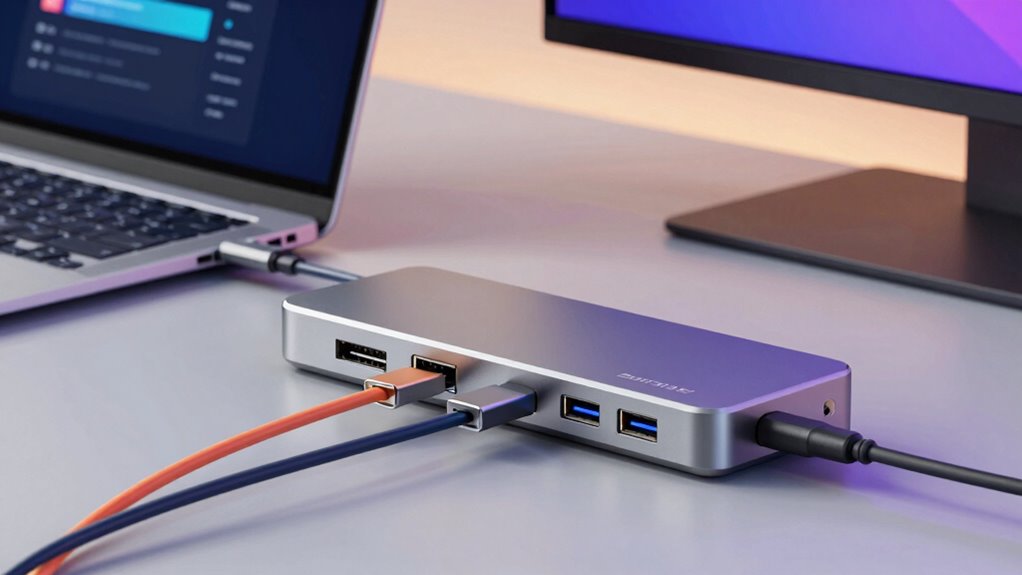

Docking stations are all-in-one devices that expand your laptop’s connectivity, letting you easily connect monitors, keyboards, mice, and external drives through a single port. They help you set up a clutter-free workspace and boost productivity. Modern docks often include wireless charging, smart power management, and energy-saving features, making your setup more efficient and eco-friendly. If you want to uncover how these smart tech improvements can transform your workspace, keep exploring.
Key Takeaways
- Docking stations expand your laptop’s connectivity, allowing multiple peripherals through a single connection.
- Modern docks often include wireless charging for compatible devices, reducing cable clutter.
- They feature advanced power management to prevent overloads and conserve energy.
- Docking stations simplify workspace setup, improving productivity and organization.
- Enhanced features like energy efficiency and smart controls support eco-friendly, sustainable use.
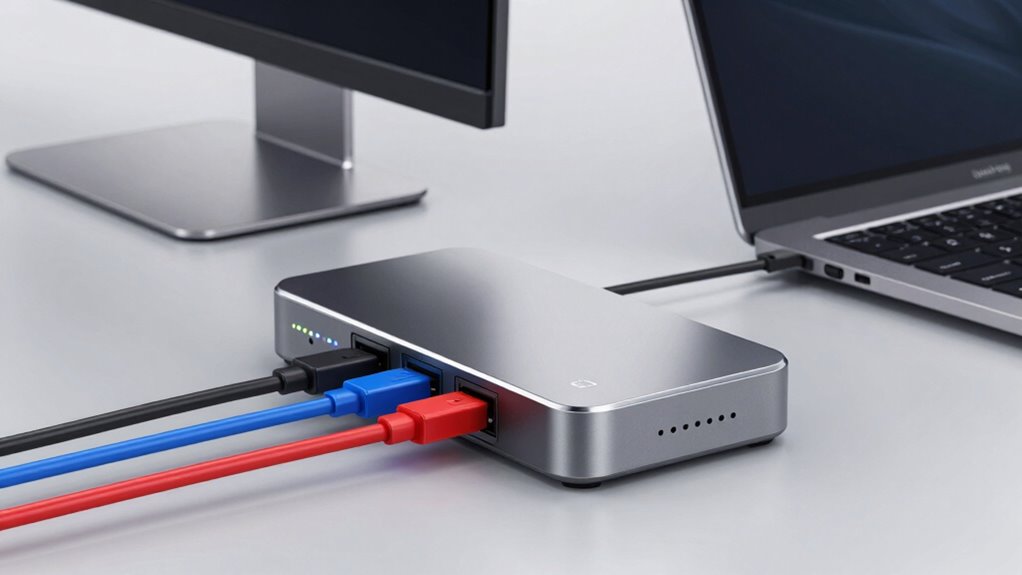
Docking stations are versatile devices that expand the connectivity options of laptops and other portable computers. They let you connect multiple peripherals, such as monitors, keyboards, mice, and external drives, all through a single connection. This setup simplifies your workspace, reduces clutter, and improves productivity. But beyond just plugging in accessories, many modern docking stations come with advanced features like wireless charging and enhanced power management, making them an even smarter investment for your tech needs.
Docking stations enhance connectivity, reduce clutter, and now offer wireless charging and smart power management for a streamlined workspace.
Wireless charging is a game-changer when it comes to managing your devices. Instead of fumbling with cables or hunting for outlets, you can place compatible smartphones or gadgets on the docking station’s wireless charging pad. This feature keeps your devices charged without adding extra clutter to your desk. It’s especially useful if you have multiple devices that need regular powering up, as it streamlines your workspace and saves time. When you pick a docking station that supports wireless charging, you don’t just get a hub for your computer; you also gain a convenient, cable-free way to keep your essential devices charged and ready to go. Additionally, power management capabilities ensure that your setup remains efficient and reliable, preventing power overloads and conserving energy. Incorporating advanced features like energy-efficient power management further enhances your overall experience and device longevity. Understanding the benefits of integrated technology can help you choose the best docking station for your needs, especially as energy efficiency becomes increasingly important in sustainable living practices. Employing smart power management can maximize energy savings and prolong the lifespan of your devices, making your workspace not only more efficient but also environmentally friendly.
USB-C docking station with wireless charging
As an affiliate, we earn on qualifying purchases.
As an affiliate, we earn on qualifying purchases.
Frequently Asked Questions
Are Docking Stations Compatible With All Laptop Brands?
Docking stations aren’t compatible with all laptop brands because compatibility standards and brand variations matter. You need to check if your laptop supports the docking station’s connection type, like USB-C or Thunderbolt. Some brands design their ports specifically, so not every docking station will work. Always verify your laptop’s compatibility and supported standards before buying, ensuring a seamless connection regardless of brand differences.
How Do I Troubleshoot Connection Issues With a Docking Station?
To troubleshoot connection issues with your docking station, first check all cable management connections, ensuring cables are securely plugged in and undamaged. Restart your laptop and docking station, then verify if power delivery is functioning properly, as insufficient power can cause connectivity problems. Update your device drivers and firmware. If issues persist, try connecting to a different port or use a different cable to rule out hardware faults.
Can a Docking Station Charge My Device Simultaneously?
Did you know that most modern docking stations can charge your device while connected? Yes, a docking station can charge your device simultaneously through Power Delivery (PD). Many models also support wireless charging, adding convenience. This means you can keep your device powered up without unplugging. Just make certain your docking station supports the required wattage for your device, so it charges effectively while you work seamlessly.
What Safety Features Should I Look for in a Docking Station?
You should look for safety features like automatic shutoff, surge protection, and high-quality build materials. Guarantee the docking station offers wireless connectivity options to reduce cable clutter and enhance safety. Port versatility is also key, as it allows you to connect multiple devices securely, minimizing the risk of damage. These features keep your devices safe and functional, giving you peace of mind while working or charging.
Do Docking Stations Support 4K or High-Refresh-Rate Monitors?
Think of your docking station as a bridge—connecting your device to new worlds. Yes, many support 4K display resolution, letting you see breathtaking detail, while high-refresh-rate monitors bring fluid motion to your visuals. When choosing, check the specifications for display resolution and refresh rate compatibility. Your docking station can support these advanced monitors, but only if it’s built with the right ports and bandwidth capacity to handle those high-performance demands.

Anker Nano Laptop Docking Station, 13in1 Dock with Detachable 6in1 USBC Hub
- Detachable 2-in-1 Design: Switches between desktop and portable modes
- Triple Monitor Support: Connects 3 displays up to 4K@60Hz
- Comprehensive Port Selection: Includes HDMI, DisplayPort, USB, Ethernet, audio, SD/TF
As an affiliate, we earn on qualifying purchases.
As an affiliate, we earn on qualifying purchases.
Conclusion
Now that you understand what docking stations do, you might think you’re all set. But here’s the twist—there’s more to these devices than meets the eye. As technology evolves, so do the possibilities—and your needs. Will your current setup keep pace? Or are you unknowingly holding yourself back? The answer lies just beyond what you see now. Stay curious, stay prepared—because the future of connectivity might depend on what you choose next.
multi-port docking station for MacBook
As an affiliate, we earn on qualifying purchases.
As an affiliate, we earn on qualifying purchases.
energy-efficient laptop docking station
As an affiliate, we earn on qualifying purchases.
As an affiliate, we earn on qualifying purchases.