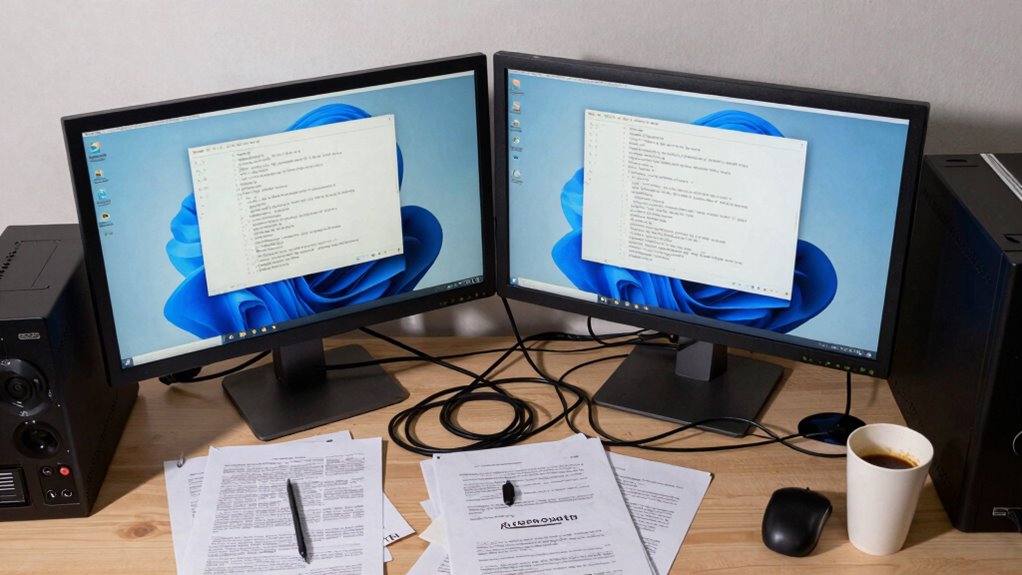

A poorly planned dual-monitor setup can quickly turn your workspace into a cluttered mess, making it harder to focus and work efficiently. When monitors are misaligned or positioned at awkward angles, it causes neck strain and distractions. Excess cables, too many open windows, and a disorganized desk can overwhelm your senses and reduce productivity. If you want to learn how to set up your dual screens for better flow and less clutter, keep exploring these key tips.

Get the latest gadgets delivered free with Prime
- Fast, free delivery on millions of items
- Prime Video, Amazon Music and more included
- Member-only deals all year
Key Takeaways
- Poor monitor placement and excessive screens create visual clutter, reducing focus and increasing distractions.
- Improper cable management leads to tangled cords, cluttering the workspace and hindering workflow.
- Lack of ergonomic setup causes discomfort, forcing awkward postures that distract from work.
- Overloading screens with unrelated information overwhelms users, diminishing productivity.
- Disorganized workspace from multiple accessories and cables hampers mental clarity and task prioritization.
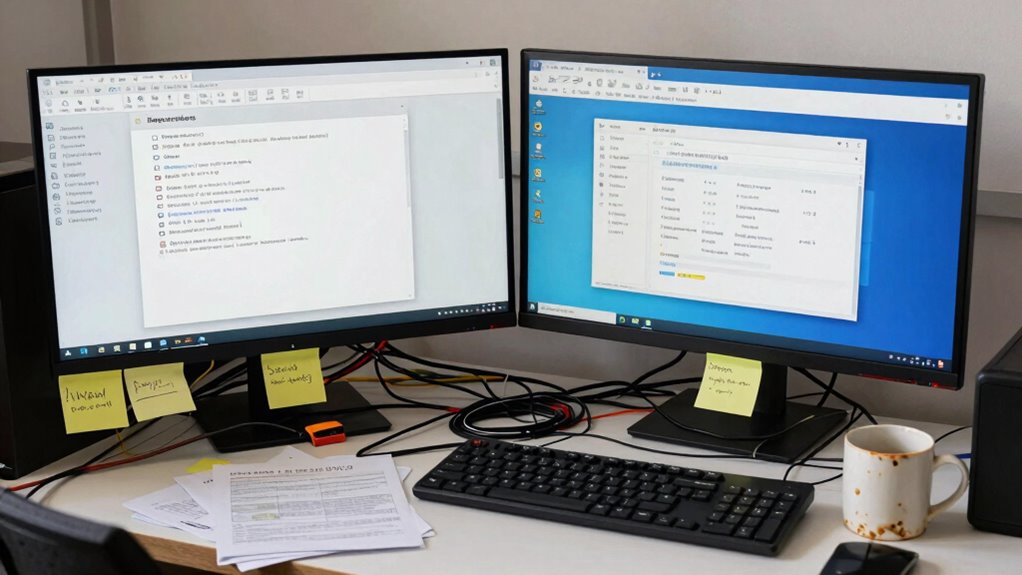
Many people believe that adding a second monitor boosts productivity, but in reality, it often creates more clutter than flow. While the idea of expanding your workspace sounds appealing, the reality is that an ill-planned dual-monitor setup can introduce ergonomic issues and productivity challenges. Instead of streamlining your work, it might just make your desk feel crowded and your workflow more complicated.
A second monitor can cause clutter and ergonomic issues if not set up properly.
When you set up a second monitor without considering ergonomic benefits, you risk straining your neck, shoulders, and eyes. Poor positioning can force you to turn your head constantly or adopt awkward postures, leading to discomfort and fatigue. Over time, this discomfort reduces your ability to focus and work efficiently. An ergonomic setup requires properly aligned monitors at eye level, with enough distance to prevent eye strain, but many setups neglect these details, which defeats the purpose of adding a second screen.
Furthermore, the presence of multiple monitors can introduce productivity challenges that aren’t immediately obvious. For example, you might find yourself overwhelmed by the sheer amount of information available at once, leading to constant switching between screens and losing focus. Instead of helping you multitask, the extra screen becomes a distraction, making it difficult to prioritize tasks effectively. It’s easy to become sidetracked by notifications or secondary windows, which hampers your ability to complete tasks quickly.
The clutter isn’t just visual; it also impacts your mental clarity. A cluttered workspace with cables, monitors, and accessories can make it tough to focus. Without proper cable management and organization, your desk can quickly become a mess, further hampering your productivity. The more clutter you see, the more it distracts you from your work, creating a counterproductive environment. Additionally, cable management techniques can play a crucial role in maintaining a clean and efficient workspace. Incorporating proper organization strategies can help keep your desktop tidy and your mind focused. Proper planning and workspace organization are essential for a seamless dual-monitor experience. In addition, considering ergonomic accessories can make a significant difference in comfort and usability.
As an affiliate, we earn on qualifying purchases.
Frequently Asked Questions
How Can I Prevent My Monitors From Overlapping Visually?
To prevent your monitors from overlapping visually, start by aligning them neatly using a monitor stand or adjustable arms. Use color coordination to match cables and accessories, creating a cohesive look. Practice good cable management by bundling and hiding cables behind your desk or using clips. This approach keeps your setup clean, organized, and prevents monitors from overlapping, giving you a smooth, professional workspace that promotes focus and efficiency.
What Are Alternative Setups to Reduce Desk Clutter?
Did you know that effective cable management and desk organization can boost productivity by up to 20%? To reduce desk clutter, consider mounting monitors on adjustable arms, freeing up surface space. Use cable clips and sleeves to tidy cords, and opt for multi-functional furniture with built-in storage. This setup minimizes visual clutter, improves workflow, and keeps your workspace clean and efficient.
How Does Monitor Placement Affect Eye Strain?
Proper monitor placement reduces eye strain by minimizing glare and unnecessary eye movement. Position your screens at eye level to prevent neck strain and angle them slightly to reduce glare from lights or windows. Keep your monitors directly in front of you, so you don’t have to turn your head often, and make certain lighting is even to avoid reflections. These adjustments help your eyes stay comfortable and reduce fatigue during long work sessions.
Are There Ergonomic Tips for Dual-Monitor Use?
Are you optimizing your workspace for comfort? To improve dual-monitor ergonomics, focus on maintaining an ergonomic posture by adjusting monitor height so your eyes are level with the top of each screen. Keep a neutral neck position and make sure your monitor distance minimizes eye strain. Regularly reposition or reposition your monitors to prevent clutter and promote smooth workflow, reducing fatigue and boosting productivity in your dual-monitor setup.
Can Monitor Stands Help Organize Workspace Better?
Yes, monitor stands can help you organize your workspace better by improving cable management and monitor positioning. They elevate your screens to eye level, reducing neck strain, while hiding cables to create a cleaner look. With proper monitor positioning, you’ll have more desk space and less clutter. Choose stands with built-in cable management features, and adjust height and angle to optimize comfort, productivity, and a tidy workspace.
As an affiliate, we earn on qualifying purchases.
Conclusion
If you think dual monitors will always boost your productivity, think again. Without proper organization, they can just add clutter and hinder your workflow. But don’t worry—by setting up designated zones for specific tasks and decluttering regularly, you’ll find your flow again. It’s not the monitors themselves, but how you manage them that makes all the difference. With a little effort, you’ll turn clutter into clarity and productivity into a breeze.
monitor riser for ergonomic setup
As an affiliate, we earn on qualifying purchases.
As an affiliate, we earn on qualifying purchases.
dual monitor mount with adjustable arms
As an affiliate, we earn on qualifying purchases.
As an affiliate, we earn on qualifying purchases.
Halloween Picks
halloween
As an affiliate, we earn on qualifying purchases.