TL;DR

Get the latest gadgets delivered free with Prime
- Fast, free delivery on millions of items
- Prime Video, Amazon Music and more included
- Member-only deals all year
An Oct. 24 XDA Developers article recommends disabling or reviewing five common TV features before watching: motion smoothing, adaptive brightness, energy-saving mode, Automatic Content Recognition and surround sound processing. The recommendations are the author’s setup preferences, not a universal test of every TV; menu names and effects can vary by model.
XDA Developers published a TV setup guide on Oct. 24 recommending that owners review five features before watching: motion smoothing, adaptive brightness, energy-saving modes, Automatic Content Recognition (ACR), and surround sound processing. The article’s author says these settings can alter picture or audio, or affect data collection, but their names, defaults and effects differ across TV models.
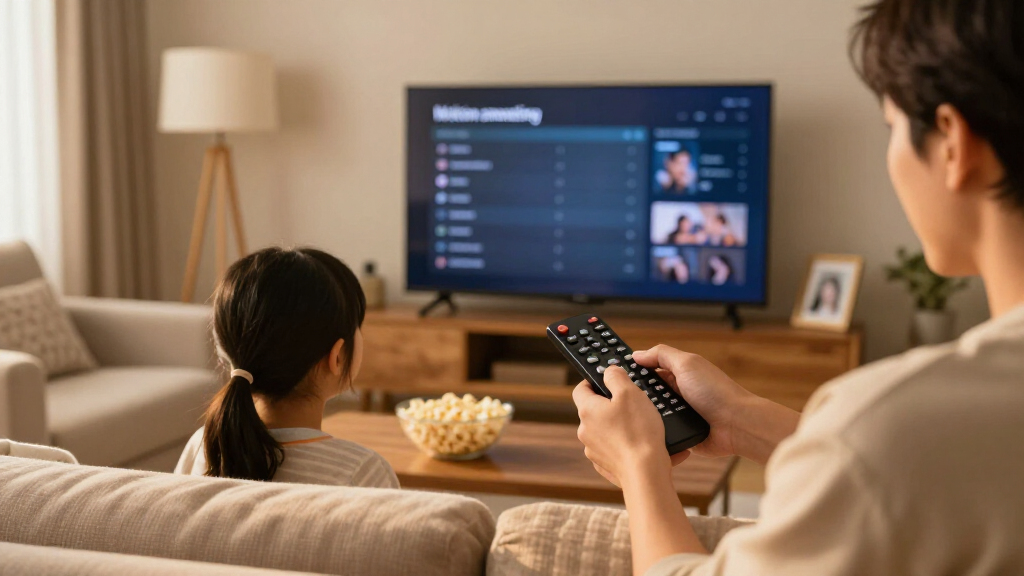
The first recommendation is to turn off or reduce motion smoothing, also sold under names such as TruMotion, Motionflow and Motion Clarity. The article says the feature inserts generated frames to make lower-frame-rate video appear smoother, which can change the look of films. Some viewers may prefer the smoother presentation, so this is a viewing preference rather than a universal defect.
The guide also advises checking adaptive brightness and Eco or energy-saving modes. These features can change or limit screen brightness based on room lighting or power settings. The author argues that this may make dark scenes look too dim or reduce the impact of bright HDR highlights. Depending on the television, those controls may be in Picture, Power, Energy or Device menus.
For privacy, the article recommends disabling ACR, a category of technology that can recognize what is displayed and support viewing analytics or targeted advertising. It also suggests turning off a TV’s surround sound processing when using an external soundbar or speaker system, since the television’s processing may conflict with the external equipment. The article cautions that some TVs may produce useful simulated surround sound through their own speakers.
Home Tech · Setup Guide · Oct. 24, 2026
5 TV Features to Review Before Anyone Watches
A setup guide from XDA Developers points to five picture, power, privacy and sound controls worth checking. Their effects vary by TV, connected equipment and personal preference.
Five controls, three parts of your setup
The guide covers how content looks, how audio is processed, and what viewing information a TV may recognize.
Motion smoothing
Generated frames can make motion look smoother and change the look of films. Turn it off or reduce it if you prefer the original presentation.
Menu names may include TruMotion, Motionflow or Motion Clarity.
Adaptive brightness
Room-light sensing can automatically change screen brightness. Check whether those adjustments suit your room and viewing habits.
Energy-saving mode
Eco or power settings may limit brightness. The guide says this can affect dark scenes or bright HDR highlights.
Automatic Content Recognition
ACR can recognize displayed content and may support viewing analytics or targeted advertising. Review privacy controls and your TV’s information.
Surround sound processing
TV processing may conflict with an external soundbar or speaker system. With built-in speakers, simulated surround may be useful to some viewers.
Test what you change
Try settings with the content, room and speakers you actually use. Restore a setting if disabling it makes the experience worse.
Why your menus may look different
Manufacturers use different labels, locations and defaults for similar controls.
Check several menus
Motion controls may be under advanced picture settings. Brightness and energy options may appear in Picture, Power, Energy or Device menus. Privacy and viewing-information options can be in a separate settings area.
Look beyond “ACR”
Related options may be described as Viewing Information Services, Live Plus, Interactive TV, or information gathered from TV inputs. Labels and behavior depend on the model and software.
Scope of the source: XDA Developers’ guide describes the author’s experience setting up TVs for family members. It is not a controlled comparison or model-by-model review, and it does not quantify energy savings or establish every manufacturer’s data practices.
Make a setup choice that fits
Review the controls in context. A setting that helps one room or audio setup may not suit another.
Compare motion and brightness with familiar content.
Check Eco modes and decide whether the picture suits you.
Review viewing-data options and current privacy information.
Test processing with your TV speakers or external system.
What the author says
These comments describe personal setup choices, not a rule for every viewer.
“Even before I download the necessary apps or sign in to any accounts, I make it a point to turn off a handful of settings.”
Tanveer · XDA Developers contributor
Picture, Sound and Data Settings
The recommendations address three parts of a TV setup that can be easy to overlook: how content is presented, how audio is processed, and what viewing information may be collected. Checking the settings at installation can help owners understand why a picture looks different from their expectations, avoid unwanted processing, and make an informed choice about privacy options.
These are not instructions that every household must follow. A viewer who likes smoother motion, uses the television’s built-in speakers, or prefers automatic brightness adjustments may choose to keep some features enabled. The practical takeaway is to check each control and decide based on the equipment and preferences, rather than assume every factory setting suits every setup.
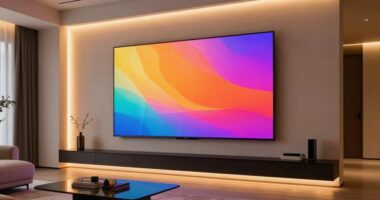
4K HDR smart TV with motion smoothing settings
As an affiliate, we earn on qualifying purchases.
As an affiliate, we earn on qualifying purchases.
Why TV Defaults Vary
TV makers use different labels and menu locations for similar functions. Motion smoothing may appear in advanced picture settings; brightness and energy controls may sit in power or system menus; and ACR-related options may be described as Viewing Information Services, Live Plus, Interactive TV or information gathered from TV inputs. The article says owners may need to inspect privacy settings as well as picture and sound menus.
The guide reflects the author’s experience setting up televisions for family members and is not presented as a model-by-model review or a controlled comparison. Its advice centers on features that can be adjusted after setup; the actual effect depends on the television, its software and the connected devices. An external streaming box, for example, does not by itself establish what data the TV collects through its other functions.
““Even before I download the necessary apps or sign in to any accounts, I make it a point to turn off a handful of settings.””
— Tanveer, XDA Developers contributor
TV calibration tool for picture settings
As an affiliate, we earn on qualifying purchases.
As an affiliate, we earn on qualifying purchases.
Model-Specific Effects and Controls
The source does not identify specific TV models or test whether each feature produces the same result across brands. It also does not quantify how much power Eco modes save or detail which manufacturers collect, retain or share particular ACR data. The article’s statements about data use should not be read as findings about every television or every company’s practices.
It remains a matter of preference whether motion smoothing or simulated surround sound improves a particular setup. Menu labels and behavior can vary by model and software version, and some televisions may not offer the same controls. Readers should consult their TV’s menus and privacy information rather than assume a setting works identically across devices.
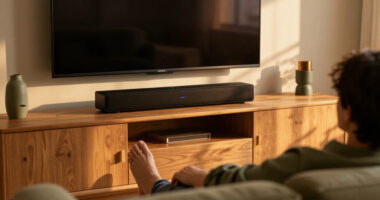
soundbar with Dolby Atmos for smart TV
As an affiliate, we earn on qualifying purchases.
As an affiliate, we earn on qualifying purchases.
The article offers no announced follow-up or product testing schedule. For owners setting up a new television, the next step is to review its picture, power, privacy and audio menus, then test changes with the content and speakers they actually use. Owners can restore a setting if disabling it makes the experience worse, and should check the manufacturer’s current privacy policy for details about viewing data.
TV privacy settings guide or smart TV privacy screen
As an affiliate, we earn on qualifying purchases.
As an affiliate, we earn on qualifying purchases.
Key Questions
Which five TV settings does the article recommend reviewing?
It names motion smoothing, adaptive brightness, energy-saving mode, ACR and surround sound processing. The author recommends disabling or reducing them, but the best choice depends on the TV and the viewer.
What is motion smoothing?
It is a processing feature that generates or inserts frames to make motion look smoother. The article says that can change the appearance of film content originally recorded at a lower frame rate.
What does ACR do on a TV?
Automatic Content Recognition can identify content displayed on a television and may be used for viewing analytics or advertising. The source recommends checking privacy settings, but does not establish the practices of every manufacturer.
Should I turn off every feature on the list?
No. The recommendations are the author’s preferences, not a universal rule. Test the settings against your viewing preferences, room and audio equipment; some people may prefer to leave certain features enabled.
Source: XDA Developers
Halloween Picks
halloween
As an affiliate, we earn on qualifying purchases.